
Appearance
Toolbar
By default Wyvern comes with the toolbars Lite, Basic and Full, and since v6.0.0 also Complete (CKEditor 5). You can create as many toolbars as you want and select a toolbar per member role in the field settings. Use the copy button to start a new toolbar from an existing one.
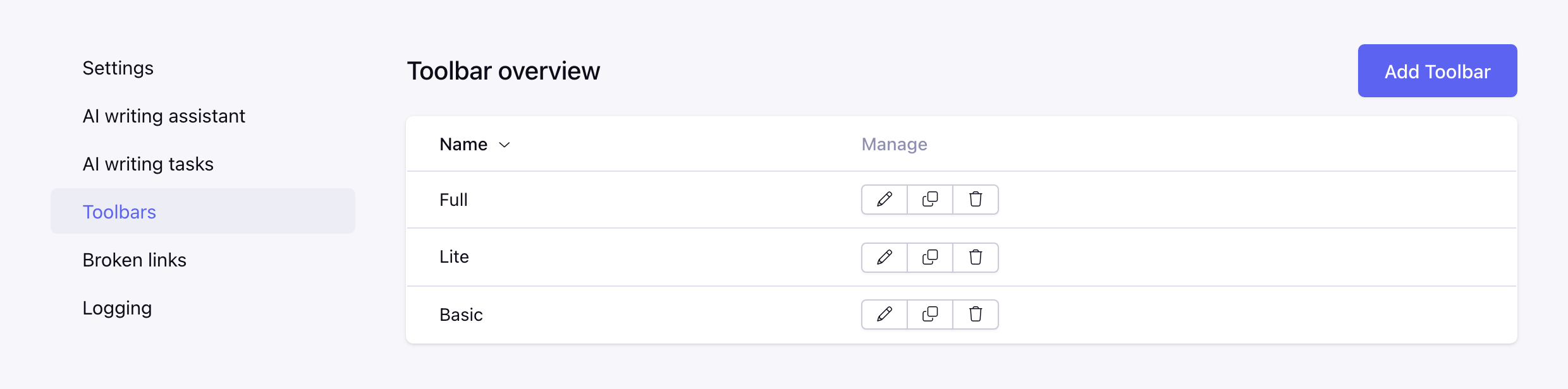
Toolbar builder
Available from v6.0.0
Go to Add-ons → Wyvern → Toolbars and create or edit a toolbar.
- Click a button in the list, or drag it into the toolbar, to add it. Buttons that are already in the toolbar are greyed out.
- Drag buttons in the toolbar to change the order, hover a button and click × to remove it.
- + Separator adds a vertical line between buttons, + New line starts a new toolbar row.
- The Live preview below the builder shows the editor with your toolbar, try the buttons right away.
When a toolbar has no new lines and does not fit, the buttons that don't fit move to a "more" (⋮) dropdown.
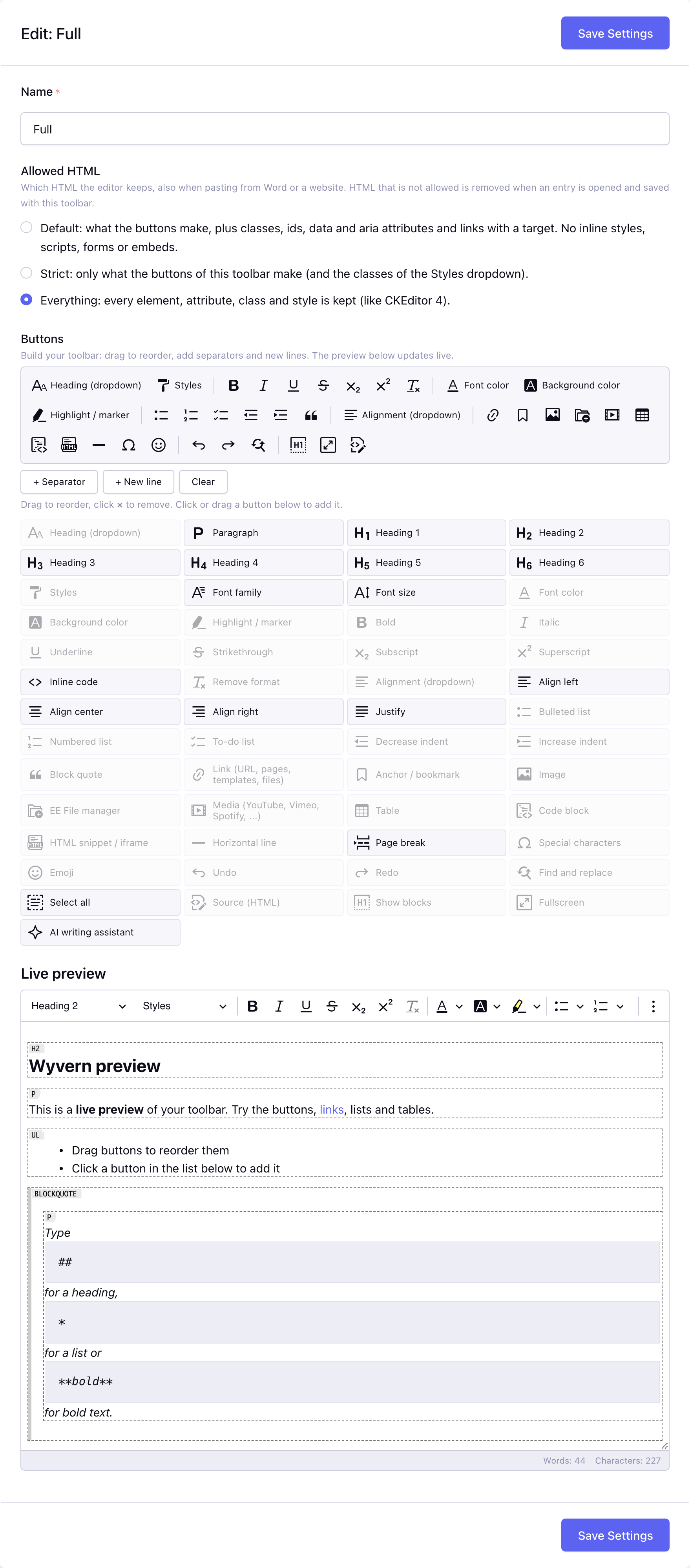
Allowed HTML
Per toolbar: which HTML the editor keeps, also when pasting from Word or a website. What the buttons make (bold, links, images, tables, font colors, alignment, ...) is always kept.
| Allowed HTML | Keeps |
|---|---|
| Default | the buttons, plus classes, id, title, lang, dir, target, rel, data-* and aria-* attributes. No inline styles, and no <script>, <style>, <iframe>, <form> and the like. |
| Strict | only what the buttons of the toolbar make, and the classes of the Styles dropdown. |
| Everything | every element, attribute, class and style, like CKEditor 4 did. |
New toolbars use Default, toolbars from before this setting keep Everything. HTML that is not allowed is removed when an entry is opened and saved with that toolbar, so check existing content before you make a toolbar stricter. Media embeds and HTML snippets are buttons themselves and keep working.
Available buttons
| Button | Description |
|---|---|
| Heading (dropdown) | Paragraph and heading 1 to 6 |
| Paragraph, Heading 1 ... Heading 6 | One button per block type |
| Styles | The styles from your JS file |
| Font family, Font size, Font color, Background color, Highlight / marker | Text formatting |
| Bold, Italic, Underline, Strikethrough, Subscript, Superscript, Inline code | Basic styles |
| Remove format | Removes the text formatting of the selection |
| Alignment (dropdown), Align left, Align center, Align right, Justify | Text alignment |
| Bulleted list, Numbered list, To-do list | Lists |
| Decrease indent, Increase indent | Indentation |
| Block quote | Quote |
| Link | Links to URLs, pages, templates, files and bookmarks, see Links |
| Anchor / bookmark | An anchor to link to within the text |
| Image | Insert an image from the file manager, by URL or by upload |
| EE File manager | Insert any file: images as image, other files as a link |
| Media | Embed YouTube, Vimeo, Spotify, ... |
| Table | Tables |
| Code block | Code with a language |
| HTML snippet | Raw HTML, for example an iframe |
| Horizontal line, Page break | Dividers |
| Special characters, Emoji | Insert characters (Emoji loads its list from cdn.ckeditor.com) |
| Undo, Redo | |
| Find and replace | |
| Select all | |
| Source | Edit the HTML |
| Show blocks | Show the HTML blocks |
| Fullscreen | Edit in fullscreen |
| AI writing assistant | The ✨ menu of the AI writing assistant; added at the end of the toolbar automatically when the assistant is on and not placed in the toolbar |
Toolbars from Wyvern 5 (CKEditor 4) keep working; their buttons are translated to the buttons above, see Update to Wyvern 6.