
Appearance
Maps Fieldtype
Once Maps Fieldtype is installed, you can add a Maps field to the Publish page.
Field settings
When you create a field with the Maps Fieldtype, the following settings are available:
| Setting | Default | Description |
|---|---|---|
| Icon dir | {base_path}themes/user/reinos_maps_fieldtype/images/markers/ | The server path of the folder with the marker icons you can choose from when editing a marker. This folder is not included in the download: create it and upload your icons, or point to your own folder. |
| Icon url | {base_url}themes/user/reinos_maps_fieldtype/images/markers/ | The URL of that same folder. |
| Location | Europe | The location (an address or a latitude, longitude) the map starts on when the field has no data yet. |
| Height | 500px | The height of the map on the Publish page. |
| Max markers | (empty) | The maximum number of markers that can be added (1 - 200). Leave it empty for no limit. |
| Default zoom level | 1 | The zoom level (1 - 22) of a new map. |
| Show map tools | Super Admin | The member roles that see the map tools in the toolbar. See Permissions. |
| Show search tools | Super Admin | The member roles that can search an address. |
| Show add marker icon | Super Admin | The member roles that can add markers. |
| Show circle icon | Super Admin | The member roles that can draw circles. |
| Show polygon icon | Super Admin | The member roles that can draw polygons. |
| Show polyline icon | Super Admin | The member roles that can draw polylines. |
| Show rectangle icon | Super Admin | The member roles that can draw rectangles. |
| Hide edit option for the layers | none | The member roles that can not edit the markers, circles, polylines, polygons and rectangles. |
| Auto center on new elements | no | Center the map when a searched marker is placed on the map: no, yes or Yes and zoom in. |
| Zoom level for auto center | 10 | The zoom level (1 - 22) used when you choose Yes and zoom in. |
| Set default Tile provider | openstreetmap | The default tile provider of the map, chosen from the tile providers that are enabled in the Maps module. |
Publish page overview
When the custom field is created, you can see the Maps Fieldtype in action on the publish field
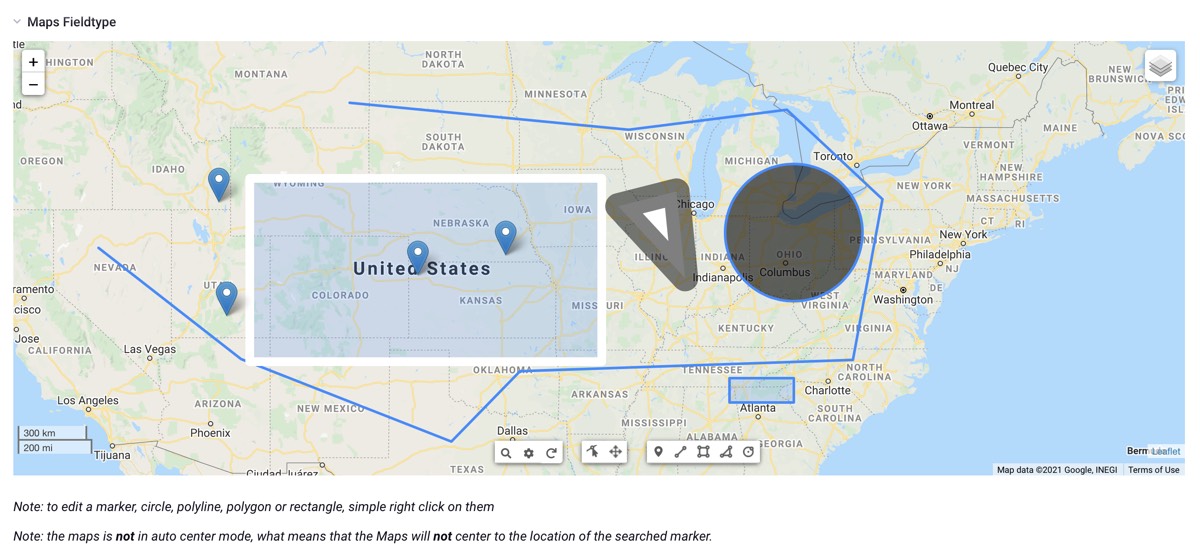
From here you can start adding markers (circles, polylines etc...), customize markers (circles, polylines etc...), search addresses and customize the map settings.
Editing Maps setting
To modify the settings for the Map, you can click on the 'Edit map settings' button in the toolbar.
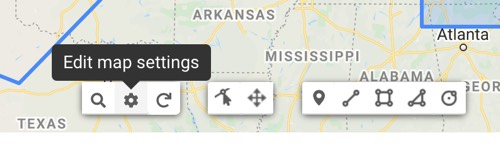
The following settings are saved with the map in the entry: the default tile, the enabled tiles, the zoom level, the max zoom level, the scroll wheel, the zoom control and its position, the scale control and its position, and an overlay (HTML and position).
Search an address
To search an address, you can click on the search icon at the bottom in the toolbar. After clicking on the icon an input field will be on top of the map where you can search an address.
The icon in the toolbar 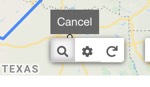
The input form with a result 
Reset the map
To simply reset the map to the original state, click on the reset icon in the toolbar.
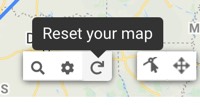
Removing/editing markers (and others)
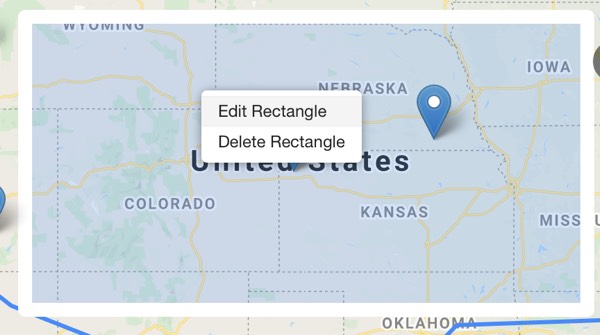
To edit or remove a marker (or a circle, polyline, polygon or rectangle), right-click on it to open a context menu. For a marker you can set a tooltip, a popup and an icon; for the other layers you can set the stroke (and fill) color, opacity and weight, a tooltip and a popup.
Add-on settings
On the settings page of the add-on (Add-Ons → Maps Fieldtype) you can set what should be logged: only errors (default), everything or nothing. The logs can be found on the Logging page of the add-on, where you can also delete them.