
Appearance
Permissions
You can set for different functions the access level based on the member role (member group before EE 6) on the field setting page.
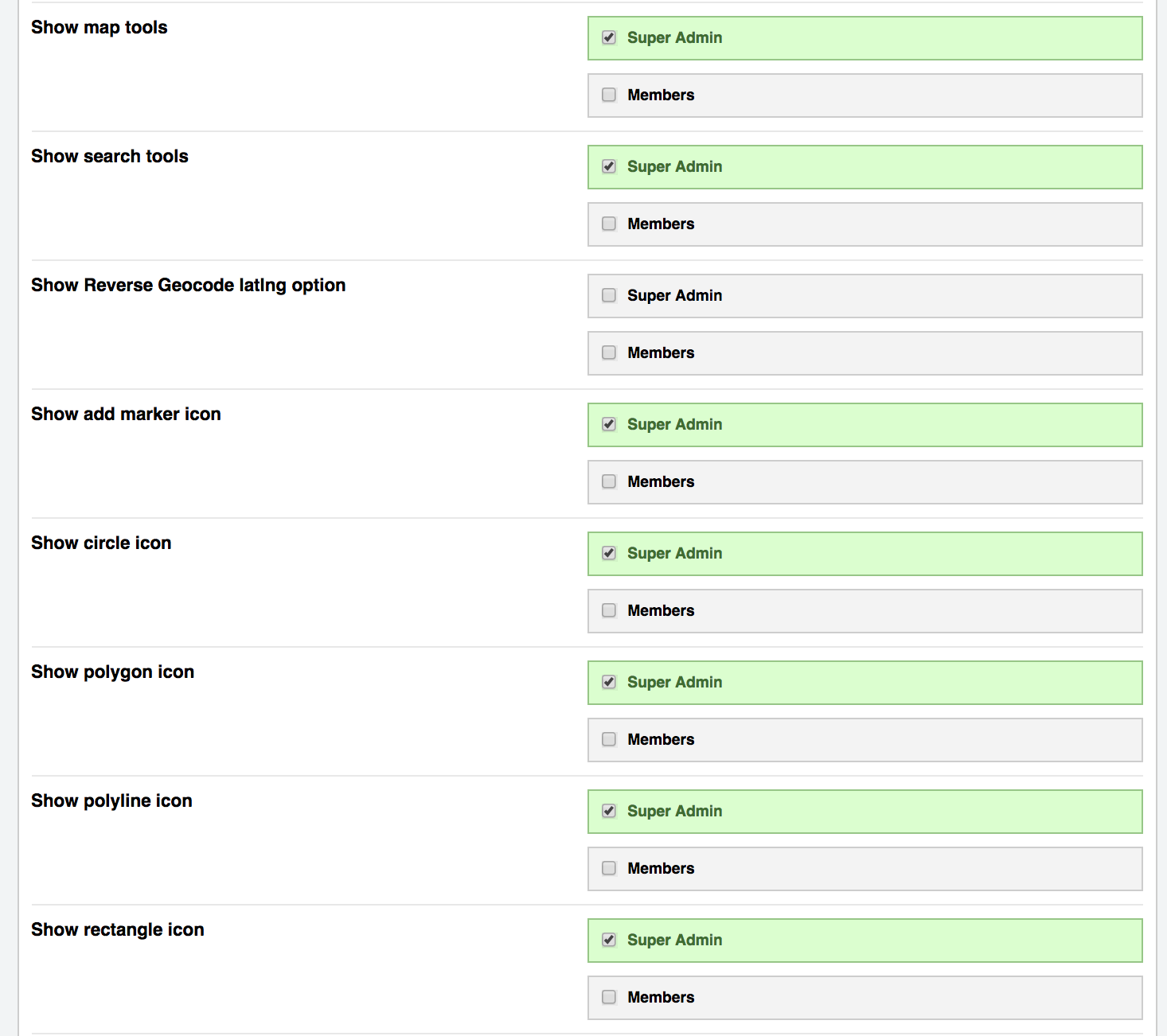
The following settings take a list of member roles:
- Show map tools: show the map tools (edit map settings, reset the map) in the toolbar.
- Show search tools: show the search button to search an address.
- Show add marker icon: allow adding markers.
- Show circle icon: allow drawing circles.
- Show polygon icon: allow drawing polygons.
- Show polyline icon: allow drawing polylines.
- Show rectangle icon: allow drawing rectangles.
- Hide edit option for the layers: the selected roles can not edit, delete, move or reshape the markers, circles, polylines, polygons and rectangles (no right-click menu and no Edit layers / Drag layers buttons). They can still add new layers when a "Show ... icon" setting allows it.
The tools are shown when one of the roles of the member (also the extra roles, not only the primary role) is selected. By default only the Super Admin role is selected for the "Show" settings. The search and drawing settings can also be given to Guests, which is useful when you use the field in a Channel Form.
When the entry is saved, the drawing settings and Max markers are also checked on the server, so they can't be bypassed in the browser. A member can't add a layer type their roles are not allowed to draw, but layers that were already in the entry (e.g. added by an admin) can stay. In Bloqs and Low Variables only required is checked on the server.
When the field is required, the map needs at least one marker or shape.