
Appearance
Map
This is the main tag for all your mapping stuff, it render the actual map.
The tag
{exp:reinos_maps:map}Tag parameters
Below are the Tag Parameters. Those parameters can be used in the tag described above.
tiles
use a tile that is enabled in the CP. Use more then one, separated with a pipe |, to enable the tile selector as seen below in the screenshots. See Providers and Tiles for all tile names.

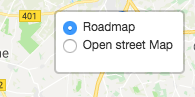
Default is openstreetmap
tiles="openstreetmap"
tiles="openstreetmap|google_maps_roadmap|google_maps_hybrid"
tile_control_position
The position of the control (one of the map corners). Possible values are topleft, topright, bottomleft or bottomright
tile_control_position="topright"dragging:disable
Available from v4.3.0
Disable dragging on all devices. Possible values are yes or no
dragging:disable="no"dragging:disable_mobile
Available from v4.3.0
Disable dragging on mobile devices. Possible values are yes or no
dragging:disable_mobile="no"fullscreen_control
Enable the fullscreen control. This adds a button to map that will set the map to fullscreen upon click. Possible values are yes or no
fullscreen_control="no"google_maps:style
if you enable the Google Tile, you also have the possibility to style the map. See https://developers.google.com/maps/documentation/javascript/styling
Because this is just Json, you can also use Snazzy for this https://snazzymaps.com/
As you enter json in the parameter, its better to use the alternative parameter.
{google_maps:style}
    [
        {elementType: 'geometry', stylers: [{color: '#242f3e'}]},
        {elementType: 'labels.text.stroke', stylers: [{color: '#242f3e'}]},
        {elementType: 'labels.text.fill', stylers: [{color: '#746855'}]},
        {
          featureType: 'administrative.locality',
          elementType: 'labels.text.fill',
          stylers: [{color: '#d59563'}]
        },
        {
          featureType: 'poi',
          elementType: 'labels.text.fill',
          stylers: [{color: '#d59563'}]
        },
        {
          featureType: 'poi.park',
          elementType: 'geometry',
          stylers: [{color: '#263c3f'}]
        },
        {
          featureType: 'poi.park',
          elementType: 'labels.text.fill',
          stylers: [{color: '#6b9a76'}]
        },
        {
          featureType: 'road',
          elementType: 'geometry',
          stylers: [{color: '#38414e'}]
        },
        {
          featureType: 'road',
          elementType: 'geometry.stroke',
          stylers: [{color: '#212a37'}]
        },
        {
          featureType: 'road',
          elementType: 'labels.text.fill',
          stylers: [{color: '#9ca5b3'}]
        },
        {
          featureType: 'road.highway',
          elementType: 'geometry',
          stylers: [{color: '#746855'}]
        },
        {
          featureType: 'road.highway',
          elementType: 'geometry.stroke',
          stylers: [{color: '#1f2835'}]
        },
        {
          featureType: 'road.highway',
          elementType: 'labels.text.fill',
          stylers: [{color: '#f3d19c'}]
        },
        {
          featureType: 'transit',
          elementType: 'geometry',
          stylers: [{color: '#2f3948'}]
        },
        {
          featureType: 'transit.station',
          elementType: 'labels.text.fill',
          stylers: [{color: '#d59563'}]
        },
        {
          featureType: 'water',
          elementType: 'geometry',
          stylers: [{color: '#17263c'}]
        },
        {
          featureType: 'water',
          elementType: 'labels.text.fill',
          stylers: [{color: '#515c6d'}]
        },
        {
          featureType: 'water',
          elementType: 'labels.text.stroke',
          stylers: [{color: '#17263c'}]
        }
      ]
{/google_maps:style} [OPTIONAL]
google_maps:streetview
Add Google Steetview to your map
Note: that you need to have Google Maps Tile enabled to get this fully working
google_maps:streetview="yes" [OPTIONAL]center:address
Center the map based on an address
center:address=""center:latlng
Center the map based on an latlng
center:latlng=""zoom
the zoom level. Default 15
zoom="15" [OPTIONAL]zoom:max
the max zoom level.
zoom:max="19" [OPTIONAL]zoom:min
the min zoom level.
zoom:min="19" [OPTIONAL]fit_map:markers
Fit the map based on the markers
fit_map:markers="no" [OPTIONAL]fit_map:circles
Fit the map based on the circles
fit_map:circles="no" [OPTIONAL]fit_map:rectangles
Fit the map based on the rectangles
fit_map:rectangles="no" [OPTIONAL]fit_map:polylines
Fit the map based on the polylines
fit_map:polylines="no" [OPTIONAL]fit_map:polygons
Fit the map based on the polygons
fit_map:polygons="no" [OPTIONAL]fit_map:geojson
Fit the map based on the geojson data
fit_map:geojson="no" [OPTIONAL]fit_map:routes
Fit the map based on the routes
Only works when the Maps Route module is installed
fit_map:routes="no" [OPTIONAL]fit_map:force_zoom_out
Zoom out on the bound level that has been set. The value must be between 1 and 10.
For example, your auto zoom is 10 and you are using fit_map:force_zoom_out="3". Your new zoom level become 7.
fit_map:force_zoom_out="1" [OPTIONAL]fit_map:force_zoom
Force zoom. This will override the auto zoom level.
fit_map:force_zoom="10" [OPTIONAL]You can combine multiple fit_map calls e.g. fit_map:circles="yes" fit_map:polygons="yes"
marker_cluster:enabled
enable clustering for the makers
marker_cluster:enabled="no" [OPTIONAL]marker_cluster:show_coverage_on_hover
When you mouse over a cluster it shows the bounds of its markers.
marker_cluster:show_coverage_on_hover="yes" [OPTIONAL]marker_cluster:zoom_to_bounds_on_click
When you click a cluster we zoom to its bounds.
marker_cluster:zoom_to_bounds_on_click="yes" [OPTIONAL]marker_cluster:spiderfy_on_max_zoom
When you click a cluster at the bottom zoom level we spiderfy it so you can see all of its markers.
marker_cluster:spiderfy_on_max_zoom="yes" [OPTIONAL]marker_cluster:remove_outside_visible_bounds
Clusters and markers too far from the viewport are removed from the map for performance.
marker_cluster:remove_outside_visible_bounds="yes" [OPTIONAL]div_class
An extra CLASS name for the map div. The div always has the classes reinos_map reinos_maps reinos_map_[map_id] reinos_maps_[map_id] and the ID reinos_map_[map_id]
div_class="" [OPTIONAL]width
the width of the map
width="700px" [OPTIONAL]height
the height of the map
height="400px" [OPTIONAL]overlay:html
Show a overlay on the map 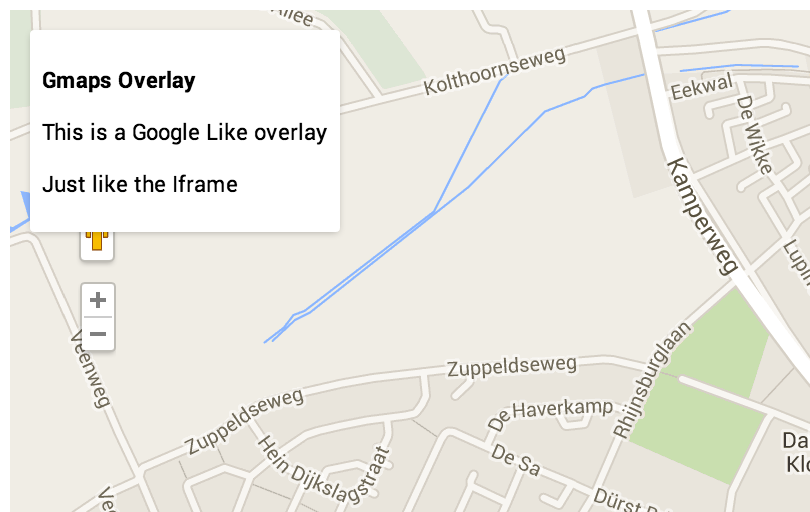
overlay:html="<p><b>Maps Overlay</b></p>This is a Google Like overlay<p><p>Just like the Iframe</p>" [OPTIONAL]overlay:position
Set the position of the overlay.
values: left right
overlay:position="left" [OPTIONAL]focus_current_location
Focus on the users current location. (SSL is needed)
focus_current_location="no" [OPTIONAL]scroll_wheel
possible to scroll the map with the scrollwheel.
scroll_wheel="yes" [OPTIONAL]zoom_control
place the zoom control on the map.
zoom_control="yes" [OPTIONAL]zoom_control_position
Set the position for the control. Possible values are topleft, topright, bottomleft or bottomright
zoom_control_position="topleft" [OPTIONAL]scale_control
place the scale control on the map.
scale_control="yes" [OPTIONAL]scale_control_position
Set the position for the scale control. Possible values are topleft, topright, bottomleft or bottomright
scale_control_position="bottomleft" [OPTIONAL]gesture_handling
Prevents users from getting trapped on the map when scrolling a long page.
gesture_handling="yes" [OPTIONAL]weather
Add a weather layer e.g. rain, snow, wind etc. (in order to use the weather layers, you need to obtain a API key from https://openweathermap.org/ and add it in the CP settings page)
Each layer is [layer_name]:[opacity]:[legend], where opacity defaults to 0.5 and legend (yes/no) to no. Separate multiple layers with a comma.
Layers: clouds cloudsClassic precipitation precipitationClassic rain rainClassic snow pressure pressureContour temperature wind
weather="[[layer_name]:[opacity]:[legend]]," [OPTIONAL]
weather="rain:0.5:no" [OPTIONAL]
Tag Variables
Below are the Tag Variables. Those Variables can be used in the tag described above
map_id
The map ID of the current map
{exp:reinos_maps:map}
   {map_id}
{/exp:reinos_maps:map}