
Appearance
Add to Cart tag
The tag for adding items to the cart
The tag
{exp:reinos_store:add_to_cart}Tag Parameters
Below are the Tag Parameters. Those parameters can be used in the tag described above
return_url
The return url, default to the current url
return_url=""sku
The SKU for a product. If omitted, it allows you to add multiple lines of the same products in to your cart.
sku=""entry_id
Required. The entry_id of your product, the cart item and the order item refer to this entry (e.g. for the stock and the sync). Without a valid entry_id the tag outputs nothing and logs an error.
entry_id=""name
Set your product name. product_name works as well.
name=""price
Set the price of the product. product_price works as well.
Note: enter the price the way you enter prices in the Store: including tax when the Tax Type is inclusive, excluding tax when it is exclusive. The Store calculates the other one with the tax rate of the product.
The Price fieldtype tag without a modifier ({product_price}) outputs the price as it was entered, so you can use it here.
price="0.00"sale_price
Set the sales price of the product (product_sale_price works as well). This will be the price for the product and you can show this in your cart where for example you strike-through the {price}.
Note: enter the price the way you enter prices in the Store: including tax when the Tax Type is inclusive, excluding tax when it is exclusive. The Store calculates the other one with the tax rate of the product.
The Price fieldtype tag without a modifier ({product_price}) outputs the price as it was entered, so you can use it here.
sale_price="0.00"tax_rate
This can either low or high and load the value that has been set in your settings.
If omit the param, it will fallback on the default tax rate set in the settings. The old param tax still works, but is deprecated: use tax_rate.
tax_rate="low"weight
Set the weight of the product (product_weight works as well), in the Weight unit of the Store settings (kilogram by default) or in the weight_unit of the product. Mostly used by the shipping add-ons (Store Shipping, Store MyParcel).
weight="2.5" {!-- 2.5 kg with the Weight unit set to kilogram --}weight_unit
Available from v4.0.0
The unit of the weight of this product: kg, g or lbs. Leave it out when the weight is in the Weight unit of the Store settings. The Store converts the weight (and the weight of the modifiers) to the Weight unit of the settings when the product is added to the cart, so the cart and the add-ons always work with one unit. Use the lowercase unit: another value (e.g. KG) is treated as the Weight unit of the settings, so the weight is not converted.
weight="500" weight_unit="g" {!-- 0.5 kg in a store with the Weight unit set to kilogram --}
weight="{product_weight}" weight_unit="{product_weight_unit}"
clear_cart
When adding a product, your can clear the cart to have a cart with always one product.
clear_cart="no"disable_shipping
If you have no shipping cost, you can disable it for a product
disable_shipping="no"form_class
Set the form class
form_class=""form_attr:[attribute]
Add an attribute to the form tag, e.g. a data- attribute or an aria-label.
form_attr:data-product="{entry_id}"
form_attr:aria-label="Add {title} to the cart"
addon:[name]
Data for an add-on, stored on the cart item, e.g. for Store Shipping. See the docs of the add-on for the names it reads.
addon:shipping="..."parent_order_item_id
The order item this product reorders or renews, e.g. {order:items:order_item_id} of the order or orders tag. The new order links back to the order it came from: see {order:items:parent_order_id} and the history on the order page in the CP.
Only an order item of the visitor for the same product is stored: an item with the same entry_id of a paid order of the logged in member (not cancelled, refunded or charged back). A guest can't be checked by an id (all guests are the same visitor to the Store), use the reorder tag with the hash of the order for guest orders. Another id is ignored (and logged), the product is added without a parent. Checked from v4.0.0
To add an ordered product for its current price, with the same options, without building the add_to_cart tag, use the reorder tag.
parent_order_item_id="{order:items:order_item_id}"custom_fields:[your-field-name]
Set custom fields
custom_fields:test="value"
custom_fields:or_an_other_value="value"
custom_field_labels:[your-field-name]
Available from v4.0.0
The label of a custom field, shown as {cart:custom_fields:label} in the cart and {order:items:custom_fields:label} in the order, and in the CP, the emails and the PDFs. It works for the custom fields of the tag and of the form. A custom field without a label gets one from its name: birth_city is Birth city.
custom_field_labels:weight_length="Weight and length at birth"
custom_field_labels:birth_city="Place of birth"
custom_fields_required
Available from v4.0.0
The custom fields that must have a value, separated by a |, like the custom_fields_required param of the checkout tag. A field that is missing or empty (only spaces is empty too) doesn't add the product, the tag shows {error:required_custom_fields} and {error:custom_fields:[your-field-name]} instead.
The fields stay required in the cart: an update of the cart that empties one keeps its value and shows {cart:error:required_custom_fields}. Add the required attribute to the input as well, so the browser asks for it before the form is posted.
custom_fields_required="weight_length|birth_city"qty
This can only be set via a form input field. A whole number, an empty, invalid or lower value than 1 adds 1.
<input name="qty" value="1"/><br>max_qty
Available from v3.5.0
Control the max qty of a single item in the cart.
This could be usefull if you have a product that can be bought just once or limited per user.
When 0 is given, it means there is no limit.
max_qty=""note
<input name="note" value=""/><br>custom_fields
<input name="custom_fields[yet_another]" value="custom value"/><br>
<input name="custom_fields[and_another]" value="other custom value"/><br>
direct
Available from v3.5.0
Add a cart item directly to the cart.
By setting this param we will submit the form directly. It will by pass any errors and log them instead to the CP log. If any error occur, we still redirect to the return_url
direct="no"Tag Variables
error:invalid_price
Return the error when an invalid price is given.
{if error:invalid_price}
    <p style="color:red;">You have entered an invalid price</p>
{/if}
error:invalid_sale_price
Return the error when an invalid sales price is given.
{if error:invalid_sale_price}
    <p style="color:red;">You have entered an invalid sales price</p>
{/if}
error:out_of_stock
Return the error when a product is out of stock
{if error:out_of_stock}
    <p style="color:red;">There is not enough stock for this product.</p>
{/if}
error:invalid_modifier
Available from v4.0.0
Return the error when the chosen modifier option is unknown, e.g. when the form was changed or the page was cached with an older form. Reload the page and choose the option again.
{if error:invalid_modifier}
    <p style="color:red;">The chosen option is not valid, please try again.</p>
{/if}
error:required_custom_fields
Available from v4.0.0
1 when the product was not added because a field of custom_fields_required had no value.
{if error:required_custom_fields}
    <p style="color:red;">Please fill in the required fields.</p>
{/if}
error:custom_fields:[your-field-name]
Available from v4.0.0
1 when this field of custom_fields_required had no value, to show the error at the field.
{if error:custom_fields:birth_city}
    <p style="color:red;">The place of birth is required.</p>
{/if}
<input name="custom_fields[birth_city]" required/>
max_qty
Available from v3.8.0
Return the max_qty number when the max_qty is given to the tag.
This is useful when you want to validate the max qty in the frontend with JavaScript. You can for example disable the plus button when the max qty is reached. Or add this to the input field as a max attribute.
{max_qty}Product Modifiers
Available from v3.3.0
With product modifiers (or product options), you can extend the price of a product using custom fields.
For example, suppose you’re selling a phone and want to offer an optional USB cable for a few extra bucks. With product modifiers, that’s possible.
The Tag
To make the tag as flexible as possible, we created a small tag that is only available inside the {exp:reinos_store:add_to_cart} tag.
It is called {reinos_store_modifier}.
{reinos_store_modifier
    name="incl_cable"
    label="USB cable"
    value="yes"
    sku="incl_cable"
    price="9.00"
}
The params name, label, value, sku and price are required, weight is optional (in the Weight unit of the Store settings). Options with the same name form one modifier, e.g. the sizes of a select list. When a required param is missing or the price is not a number, the {modifiers} pair outputs invalid tag, see log and the CP log names the tag.
The example above creates a modifier option that can be listed as follows:
{modifiers}
    <label class="font-medium" for="{modifiers:label}">{modifiers:label}</label>

      {modifiers:options}
          <div class="flex gap-x-2 items-center">
              <input type="checkbox" name="{modifiers:form_input_name}" value="{modifiers:options:value}"> {modifiers:options:title} (+{modifiers:options:price:formatted})
          </div>
      {/modifiers:options}
{/modifiers}
So far, we’ve only discussed one option — a checkbox. But you can also create a <select> list.
First, register the options:
{reinos_store_modifier
    name="size"
    label="Size"
    value="XL"
    sku="xl"
    price="3"
    weight="1"
}

{reinos_store_modifier
    name="size"
    label="Size"
    value="L"
    sku="l"
    price="2"
    weight="1"
}
Then list them in the HTML like this:
{modifiers}
<label class="font-medium" for="{modifiers:label}">{modifiers:label}</label>
<select class="input" name="{modifiers:form_input_name}">
        <option value="">----</option>
        {modifiers:options}
            <option value="{modifiers:options:value}">{modifiers:options:title} (+{modifiers:options:price:formatted})</option>
        {/modifiers:options}
    </select>
{/modifiers}
Or combine both a checkbox and a select:
{reinos_store_modifier
    name="incl_cable"
    label="Inclusive USB cable"
    value="yes"
    sku="incl_cable"
    price="9.00"
    weight="10"
}

{reinos_store_modifier
    name="size"
    label="Size"
    value="XL"
    sku="xl"
    price="3"
    weight="1"
}

{reinos_store_modifier
    name="size"
    label="Size"
    value="L"
    sku="l"
    price="2"
    weight="1"
}
{modifiers}
    <label class="font-medium" for="{modifiers:label}">{modifiers:label}</label>

    {if modifiers:name == 'incl_cable'}
        {modifiers:options}
            <div class="flex gap-x-2 items-center">
                <input type="checkbox" name="{modifiers:form_input_name}" value="{modifiers:options:value}"> {modifiers:options:title} (+{modifiers:options:price:formatted})
            </div>
        {/modifiers:options}
    {if:else}
        <select class="input" name="{modifiers:form_input_name}">
            <option value="">----</option>
            {modifiers:options}
                <option value="{modifiers:options:value}">{modifiers:options:title} (+{modifiers:options:price:formatted})</option>
            {/modifiers:options}
        </select>
    {/if}
{/modifiers}
Modifier variables
Inside {modifiers}:
| Variable | Description |
|---|---|
{modifiers:name} | The name of the modifier |
{modifiers:label} | The label of the first option |
{modifiers:form_input_name} | The name of the form field, use it as the name of your checkbox, radio or select |
{modifiers:form_input_id} | A unique id for the form field, e.g. for a <label for=""> |
{modifiers:form_id} | The id of the add_to_cart form |
{modifiers:base_price}, {modifiers:base_price_plus_tax} | The price of the product without modifiers, excluding and including tax |
{modifiers:base_sale_price}, {modifiers:base_sale_price_plus_tax} | The sale price of the product without modifiers |
Inside {modifiers:options}:
| Variable | Description |
|---|---|
{modifiers:options:value} | The value to post for this option (encoded, it only says which option was chosen) |
{modifiers:options:title} | The value of the option as entered, to show |
{modifiers:options:name}, {modifiers:options:label}, {modifiers:options:sku}, {modifiers:options:weight} | The params of the option |
{modifiers:options:price}, {modifiers:options:price_plus_tax} | The price of the option, excluding and including tax |
{modifiers:options:price:formatted}, {modifiers:options:price_plus_tax:formatted} | The same, formatted with the currency |
{modifiers:options:option_id} | A unique id of the option |
The price, weight and SKU of an option are only taken from the {reinos_store_modifier} tag. The value of an option ({modifiers:options:value}) only tells the Store which option was chosen, changing it in the form doesn't change the price.
Dynamic prices
We also support dynamic price updates via JavaScript. Simply add the {exp:reinos_store:modifier_js} tag at the bottom of the page where your {exp:reinos_store:add_to_cart} tag is, or in your site’s HTML footer.
Then, add one of the following CSS classes to the price element:
reinos-store-dynamic-pricereinos-store-dynamic-price-plus-tax
The JavaScript will automatically update the innerHTML of those elements with the new price.
Example
Default
Below a small example how you can add a product to your cart
{exp:reinos_store:add_to_cart
  form_class="space-y-3"
  entry_id="{entry_id}"
  sku="{entry_id}"
  name="{title}"
  price="{product_price}"
  sale_price="{product_sale_price}"
  weight="{product_weight}"
  disable_shipping="{product_disable_shipping}"
  return_url="reinos_store/cart"
  tax_rate="high"
  {!--Custom fields via prop --}
  custom_fields:test="test custom field"
  {!--The labels of the custom fields, and the ones that must have a value --}
  custom_field_labels:test="Test field"
  custom_field_labels:field_from_input="Custom field"
  custom_fields_required="field_from_input"
}

  {if error:invalid_price}
    <p style="color:red;">You have entered an invalid price</p>
  {/if}

  {if error:invalid_sale_price}
    <p style="color:red;">You have entered an invalid sale price</p>
  {/if}

  {if error:out_of_stock}
    <p style="color:red;">There is not enough stock</p>
  {/if}

  <div class="flex flex-col space-y-1">
    <label class="font-medium">Custom Field</label>
    {if error:custom_fields:field_from_input}
      <p style="color:red;">This field is required</p>
    {/if}
    <input class="input" type="text" name="custom_fields[field_from_input]" placeholder="custom field" required/>
  </div>

  <div class="flex flex-col space-y-1">
    <label class="font-medium" for="qty">Quantity</label>
    <input class="input" type="number" id="qty" name="qty" value="1"/><br>

    {!-- a simple note --}
    <label class="font-medium" for="note">Note</label>
    <input class="input" type="text" id="note" name="note" value=""/><br>

  </div>

  <input type="submit" class="button" value="Add to Cart"/>
{/exp:reinos_store:add_to_cart}
With options/modifiers
*Version 3.3.0 contain product modifiers that change the price as well. *
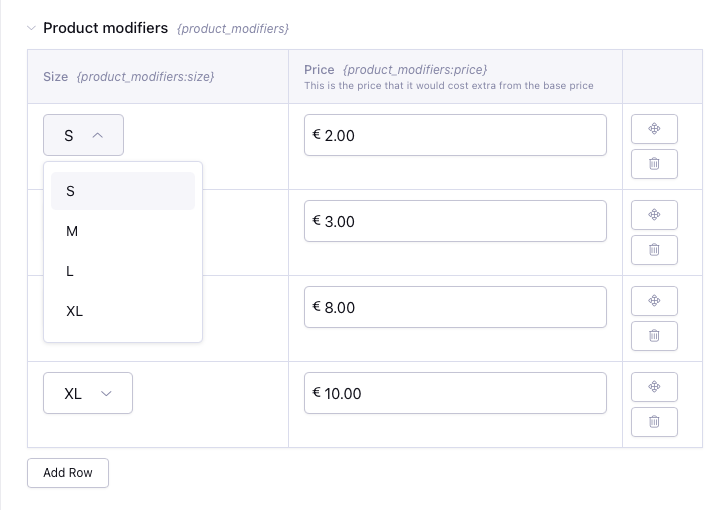
Let's say you have different size for your t-shirt. You will create a grid field where you add the size (S, M, L, XL, XXL etc) and add the extra field for the price.
{embed="reinos_store/_header"}

<h1 class="font-bold mt-5 mb-10 text-2xl">Reinos Store test page</h1>

<div class="grid grid-cols-3 gap-3">
    {exp:channel:entries channel="products"}
        {exp:reinos_store:add_to_cart
            form_class="space-y-3"
            entry_id="{entry_id}"
            sku="{entry_id}"
            name="{title}"
            price="{product_price}"
            return_url="reinos_store/cart"
            tax_rate="high"
        }
            {!-- Define the product modifiers --}
            {product_modifiers}
               {reinos_store_modifier
                    name="size"
                    label="Size"
                    value="{product_modifiers:size}"
                    sku="{product_modifiers:size}"
                    price="{product_modifiers:price}"
                }
            {/product_modifiers}

            <div class="product border p-5 rounded-md bg-gray-100 space-y-3">
                <h2 class="font-medium text-lg">{title}</h2>
                <h3 class="price">
                    <!-- Mark the class reinos-store-dynamic-price to updater the price dynamically -->
                    <span class="reinos-store-dynamic-price">{product_sale_price:plus_tax_formatted}</span>
                </h3>
                <img class="w-full" src="https://place-hold.it/640x300" alt="Card image cap">
                <p>Some quick example text to build on the card title and make up the bulk of the card's content.</p>

                {if error:invalid_price}
                    <p style="color:red;">You have entered an invalid price</p>
                {/if}

                {if error:invalid_sale_price}
                    <p style="color:red;">You have entered an invalid sale price</p>
                {/if}

                {if error:out_of_stock}
                    <p style="color:red;">There is not enough stock</p>
                {/if}

                <div class="flex flex-col space-y-1">
                    <label class="font-medium" for="qty">Quantity</label>
                    <input class="input" type="number" id="qty" name="qty" value="1"/><br>
                </div>

                <div class="flex flex-col space-y-1">
                    {modifiers}
                        <label class="font-medium" for="{modifiers:label}">{modifiers:label}</label>
                        {if modifiers:name == 'size'}
                            <select class="input" name="{modifiers:form_input_name}">
                                <option value="">----</option>
                                {modifiers:options}
                                    <option value="{modifiers:options:value}">{modifiers:options:title} (+{modifiers:options:price:formatted})</option>
                                {/modifiers:options}
                            </select>
                        {/if}
                    {/modifiers}
                </div>

                <input type="submit" class="button" value="Add to Cart"/>
            </div>
        {/exp:reinos_store:add_to_cart}
    {/exp:channel:entries}
</div>

{exp:reinos_store:modifier_js}

{embed="reinos_store/_footer"}