
Appearance
CP Overview
On the CP page you can modify a couple of things. The sidebar has three pages: Settings, Tax Rules and Logging.
Settings
Calculate tax
Charge tax on the products and the shipping. Turn this off when the shop doesn't charge tax at all: then all tax is 0% and the tax rules are not used.
Tax calculation
Determine how you entered the product prices: "Exclusive" or "Inclusive". E.g. if you entered them without tax, select "Exclusive". This way we can ensure we calculate the correct price for your tax.
If you set this to "Inclusive", all prices are calculated with the default tax rate. When you have multiple tax rates, it is advised to set this setting to "Exclusive".
This setting (like Calculate tax and the Tax default rate) is a setting of the Store module, it is only shown here for convenience.
Tax default rate
Set the default tax rate (High or Low) that we should use when the product did not set a tax rate via the tax_rate="" param.
Business detection
How should we detect if the customer is a business customer? This is used for the Applies to option of a tax rule.
- By Name: the customer is a business when the company name is filled in.
- By Name and TAX number (default): the customer is a business when both the company name and the TAX number are filled in.
Validate tax number
Validate the tax number of a customer that is marked as a business (the company name is filled in). We validate both the syntax and the number itself with the EU VIES service. When the number is invalid, the customer gets an error during checkout. EU numbers are checked with VIES, Swiss and UK numbers only on syntax; numbers of other countries are always invalid. When the VIES service can't be reached, the number is accepted on its syntax.
The results of the VIES service are cached for 60 days. See How does it work for the details.
Allow empty TAX number
By default we allow empty tax numbers. If you want to force a business customer to fill in a tax number, disable this option. Only used when the tax number is validated.
Reverse charge VAT for EU store owners
Enable this when you are a store owner in the EU. When enabled, the tax number of a business customer with a billing country in the EU is always validated, in addition to the Validate tax number setting.
With the reverse charge mechanism (Article 17 of the VAT Act) no VAT is charged by the supplier. Instead, the buyer is required to calculate, report and pay the applicable VAT in their own country via their VAT return. This rule is commonly used for cross-border business transactions within the EU and shifts the VAT responsibility from the seller to the buyer.
The reverse charge is applied to the cart and the order when the tax number of the customer:
- is filled in together with a company name;
- is valid according to the VIES service;
- belongs to an EU country (including Northern Ireland,
XI); - does not belong to the Store country of the Store settings (a domestic customer is charged the normal tax);
- has an address in VIES where the zip code and city match the billing zip code and city of the customer. When VIES returns no readable address (e.g. for Germany and Spain), the address is not checked.
In that case the tax of the items and the shipping is set to 0 and {cart:is_reverse_charge_eu} / {order:is_reverse_charge_eu} is set to 1, so you can show a reverse charge notice on the cart, order and invoice. See the cart tag and the orders tag of the Store module. The VIES result is stored with the order.
This setting can only be enabled when the Store country is set in the Store settings. As long as it is empty, the settings page shows a warning with a link to the Store settings. When this setting is disabled, the reverse charge is never applied. Note: the zip code and city must be spelled the same as in VIES (spaces and case are ignored) and the VIES address can't be read for every EU country. See the limitations.
Default member field country
Get the country of the customer from a member field when no billing country is known yet (e.g. before the checkout). You should save the country code in this field. You can do this by using {exp:reinos_store:country_list field_name="m_field_id_....." value="{member_field_for_country}"} in your registration/edit form.
For guests, or when the member field is empty, the Default country below is used.
Default country
Use this country to calculate the TAX when no billing country is known yet (e.g. before the checkout). Set it to "None" to calculate no tax until the customer entered a billing country.
The shipping tax uses the same country as the products.
Log settings
What should we log: only errors (default), everything or nothing. The logs can be found on the Logging page.
TAX rules
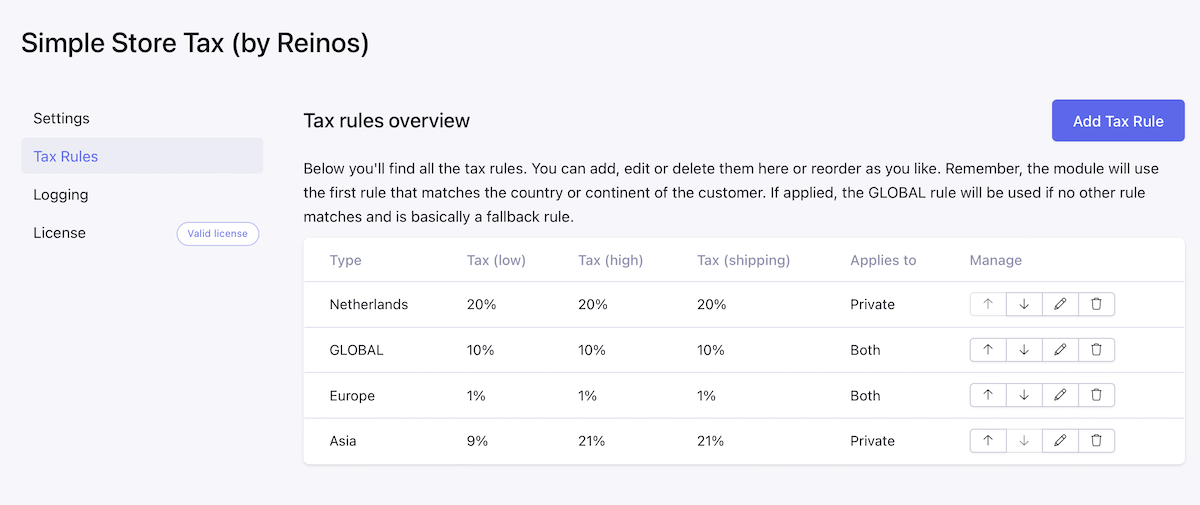
Here you can set your TAX rules. You can define them by Country, Continent or State/Province, or you can set a GLOBAL TAX rule.
Remember, order matters: the rules are checked from top to bottom and the first rule that matches the billing country (or its continent or state) of the customer is used. A global rule matches every customer, so place it as the last rule to use it as a fallback for all other countries. Use the up and down arrows in the overview to change the order. With the per page filter above the list you choose how many rules are shown per page.
A state rule for a US state or Canadian province only matches customers from that country. A custom state ("Other") matches the billing state in every country.
When no rule matches, no tax is calculated (0%).
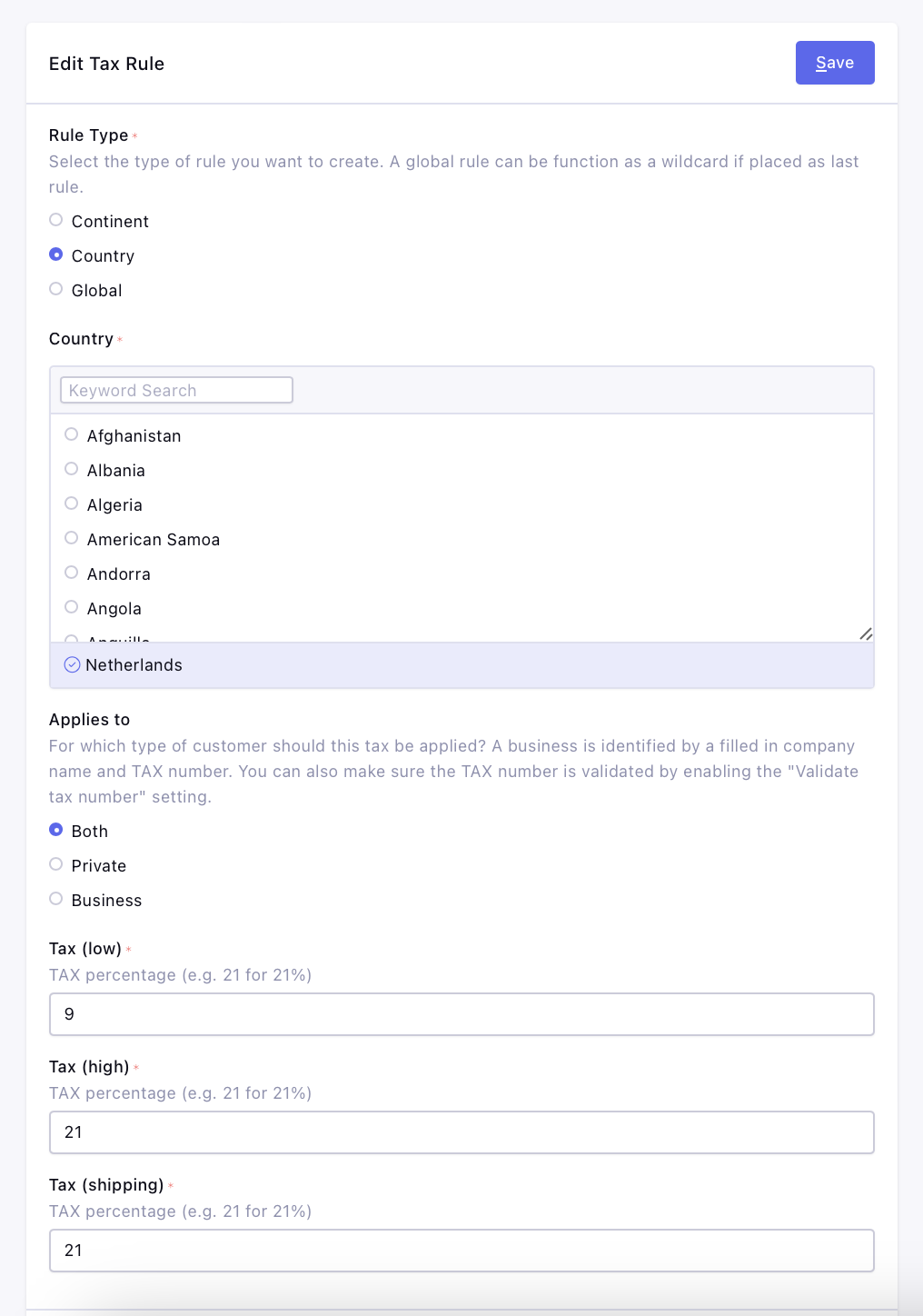
Rule Type
- Continent: the rule applies to all countries of the selected continent.
- Country: the rule applies to the selected country.
- State: the rule applies to a state or province. Select the country (United States or Canada) to pick the state from a list, or select "Other" to enter a custom state, province or region.
- Global: the rule applies to every customer.
You can only add one rule per country and one rule per continent on each site.
Applies to
For which type of customer should this rule be applied: both, private or business. How a business customer is detected is set with the Business detection setting.
When the first matching rule does not apply to the type of customer, no tax is calculated; we do not look further for another rule. With Log settings on "Everything" this is logged as a [Rule] notice.
Tax (low), Tax (high) and Tax (shipping)
The tax percentages (e.g. 21 for 21%) of this rule. The low or high rate is used based on the tax_rate of the product (or the Tax default rate setting), the shipping rate is used for the shipping costs.
Decimal rates can be used (e.g. 13.5 or 14.975).
Info
Info about the tax rule (max. 100 characters), e.g. "VAT" or "GST + PST". You can show this in your templates with {cart:tax_details:info} and {order:tax_details:info}, see the cart tag and the orders tag of the Store module.
Import Tax Rules
With the "Import Tax Rule" button you can import a set of tax rules:
- EU tax rules: a country rule for every EU member state, with the standard rate as high and shipping rate and the highest reduced rate as low rate.
- Canada tax rules: a state rule for every province and territory with the combined GST/PST/HST rate, the info field is set to the taxes that are used (e.g. "PST + GST").
Existing EU country rules and Canada province rules are updated, new rules are added at the bottom of the list. Check the imported rates before you use them.
Logging
This is where you can track all error logs. What is logged is set with the Log settings.
Filters, bulk delete and export
Available from v2.0.0
Filter the logs on the severity (error or notice), a period (e.g. the last 30 days or a custom date) or a keyword in the message, and choose how many logs are shown per page. The filters are kept when you sort or go to another page.
Select logs with the checkboxes to delete them at once, or use Delete all logs to delete all logs of the current site. Export logs downloads the filtered logs as a CSV file (separated by ;).