Appearance
Control Panel
Settings
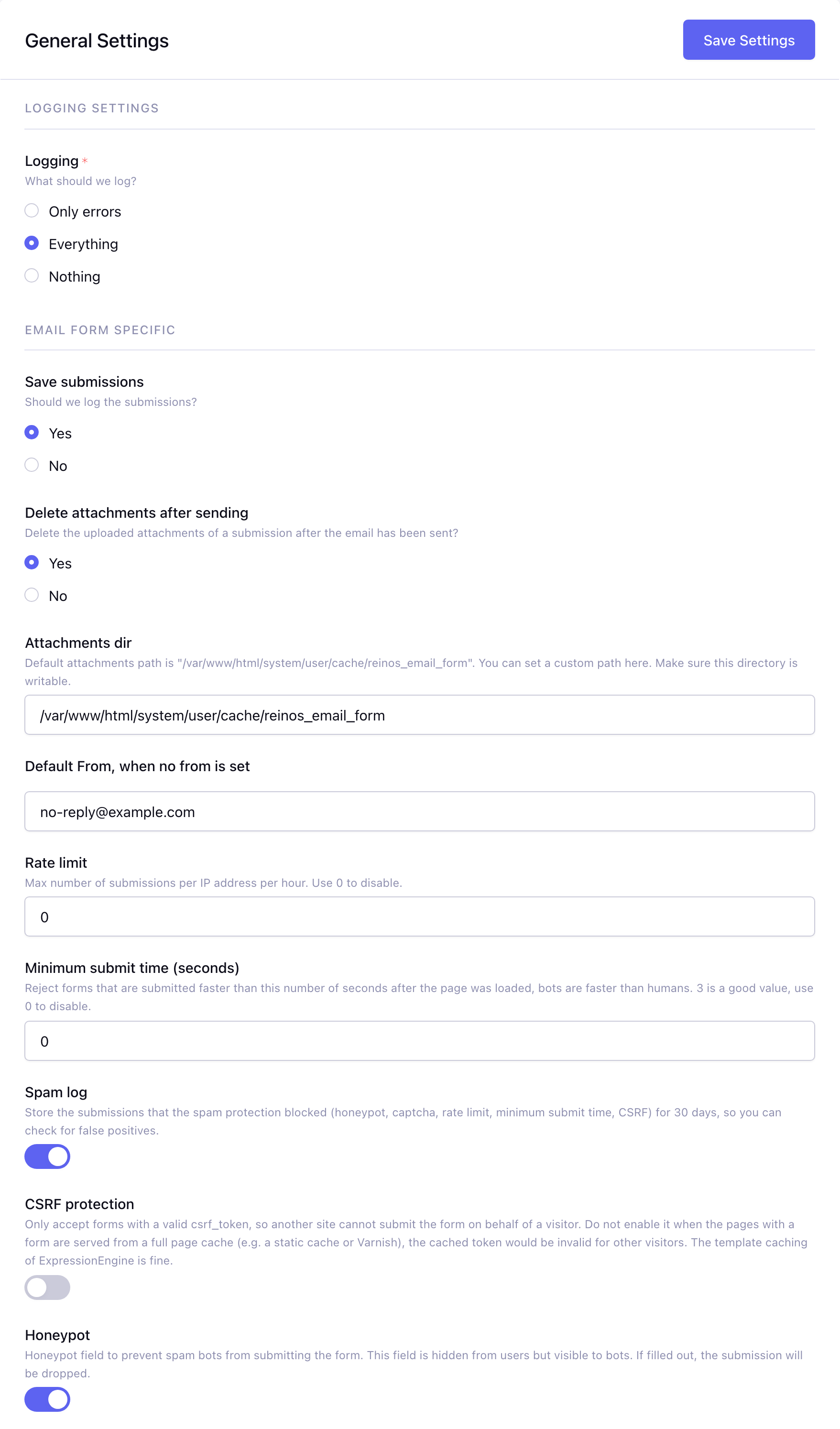
Here you can save the common settings.
Logging
Choose what is written to the log: only errors, everything (also notices like a triggered honeypot or a failed captcha) or nothing. The log can be found in the Logs section of the add-on.
Save submission
Option that will save the submissions
Delete attachments after sending
Delete the uploaded attachments of a submission after the email has been sent. If disabled, the files are kept on the server. The attachments are never saved in the submission in the database.
Attachments dir
Set the dir where we save the attachments. Normally the default (the cache dir of ExpressionEngine) is fine. Every submission gets its own sub dir, so concurrent submissions never touch each other's files.
Default From
Set a default from, when no from is set in the form tag.
Rate limit
Available from v5.7.0
The max number of submissions per IP address per hour. 0 disables the limit.
Minimum submit time
Available from v5.7.0
Reject forms that are submitted faster than this number of seconds after the page was loaded; a bot fills in a form much faster than a human. 3 is a good value, 0 disables the check. When the page is served from a full page cache, the check is less strict, because the render time is older.
Spam log
Available from v5.7.0
Store the submissions that the spam protection blocked in the Spam log. Enabled by default.
CSRF protection
Available from v5.7.0
Only accept forms with a valid csrf_token, so another site cannot submit your form on behalf of a visitor. The form tag adds the token automatically. Disabled by default: do not enable it when the pages with a form are served from a full page cache (e.g. a static cache or Varnish), because the cached token is invalid for other visitors. The template caching of ExpressionEngine is fine.
Honeypot
Honeypot field to prevent spam bots from submitting the form. This field is hidden from users but visible to bots. If filled out, the submission will be dropped.
Privacy
Available from v5.7.0
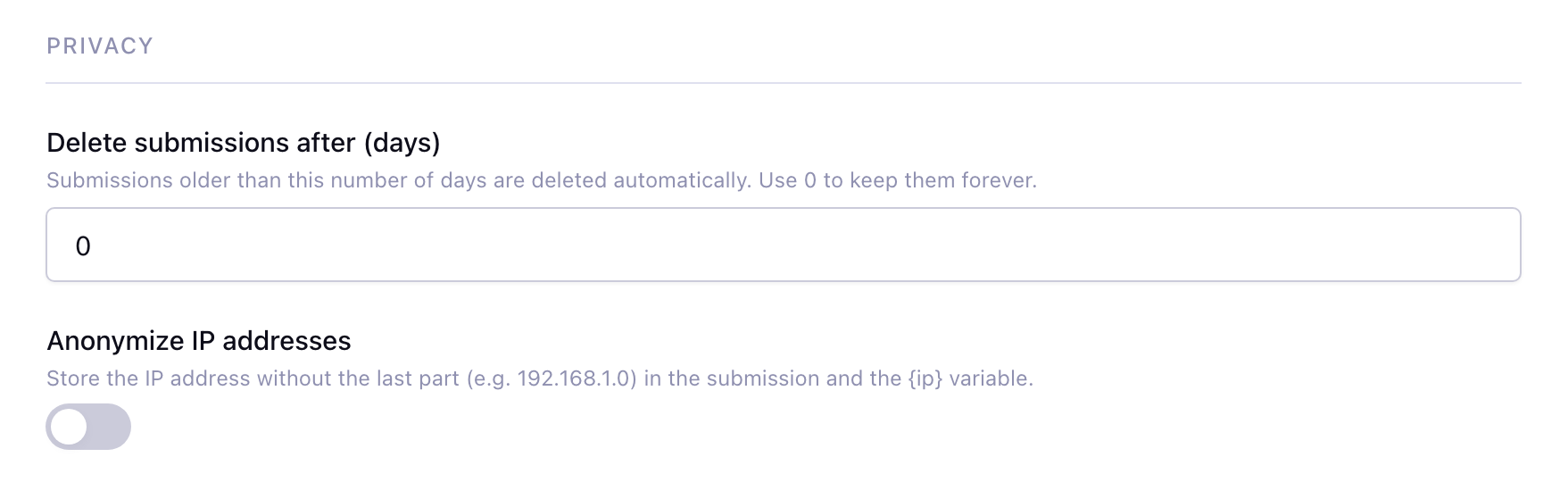
- Delete submissions after (days): submissions older than this number of days are deleted automatically, when a new submission is saved or the Submissions page is opened.
0keeps them forever. - Anonymize IP addresses: store the IP address without the last part (e.g.
192.168.1.0), in the submission and in the{ip}variable.
Captcha
Choose the captcha that protects your forms:
InvisibleandChallenge: Google reCAPTCHA via Google Cloud, see Google reCAPTCHAV3 Legacy (Invisible)andV2 Legacy (Challenge): the classic Google reCAPTCHA with a site and secret key, see Google reCAPTCHA (legacy)Cloudflare Turnstile: see Cloudflare Turnstile
Whatever you choose, add {exp:reinos_email_form:init_recaptcha} to the head of your page and {if recaptcha}{recaptcha}{/if} inside your form, see the form tag.
Google reCAPTCHA
The Challenge mode shows the "I'm not a robot" checkbox, the Invisible mode scores every submission in the background.
Create a new reCAPTCHA
To create a new reCAPTCHA, you need a Google account and access to Google Cloud.
Once logged in, go to the reCAPTCHA Cloud page and create a new key.
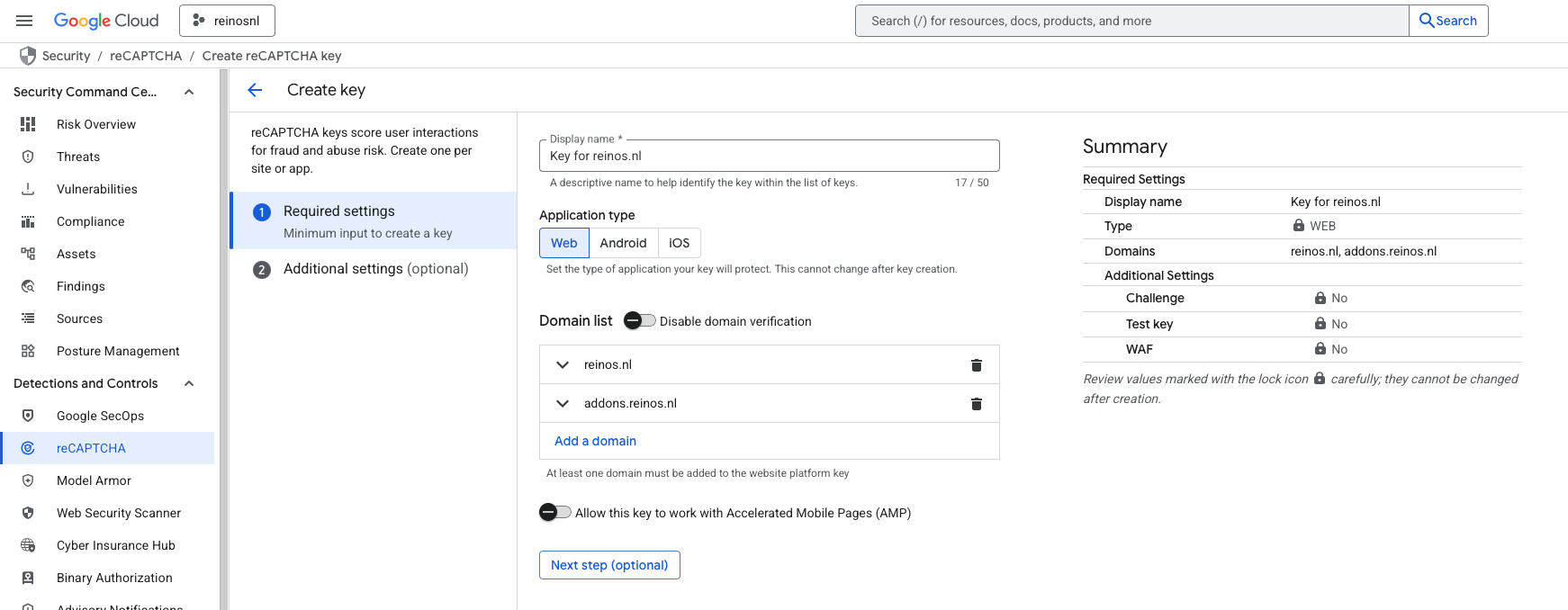
Next, proceed to the "Next step (optional)" section, where you can define whether the reCAPTCHA should be invisible or visible as a challenge.
If you want an Invisible or Challenge reCAPTCHA, you can configure this by setting the value for "Will you use challenges?" accordingly.
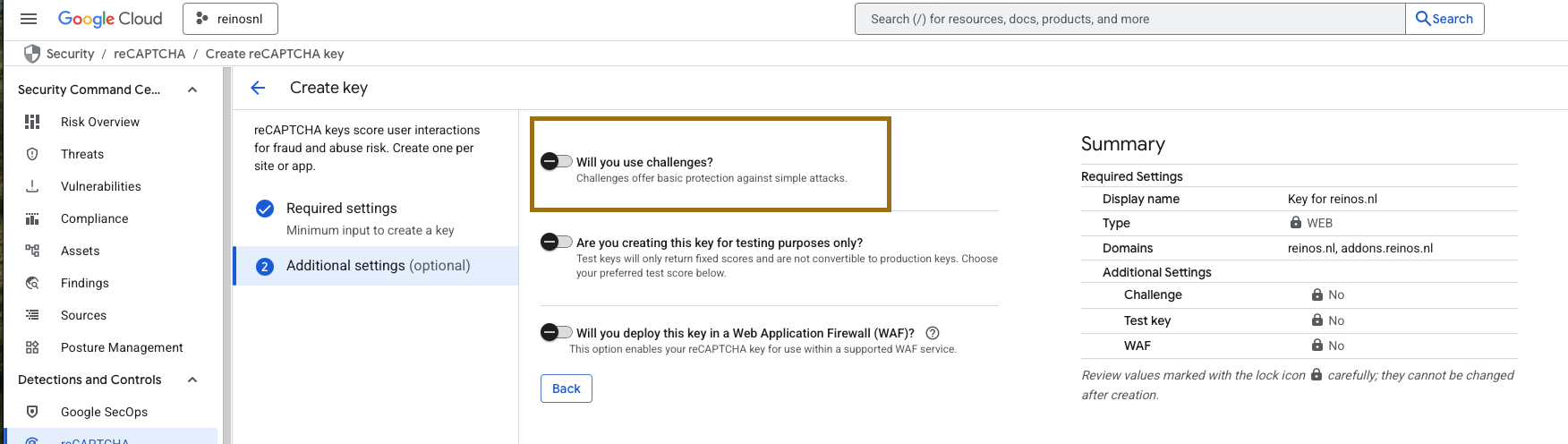
Once everything is filled out, click Create Key.
Create a service account
To authenticate with Google, the new reCAPTCHA uses the default authentication method via a service_account.json file. You can create and download one by following these steps:
- Navigate to console.cloud.google.com/iam-admin/serviceaccounts and select your project.
- Click the Create service account button.
- Fill in the details and ensure the account has sufficient permissions.
- After creating the account, go to its details page.
- Navigate to the Keys tab.
- Click Add key, choose Create key, select JSON as the key type, and click Create.
- A JSON file will be downloaded automatically. This file is needed for the authentication. Rename the file to
service_account.jsonand store it on a save place on you server. - Update the
Google Cloud Service Account Pathsetting to reflect the location where you put yourservice_account.json
Update the Email Form reCAPTCHA settings
Once you have your service account and the service_account.json file, go to your ExpressionEngine Email Form control panel.
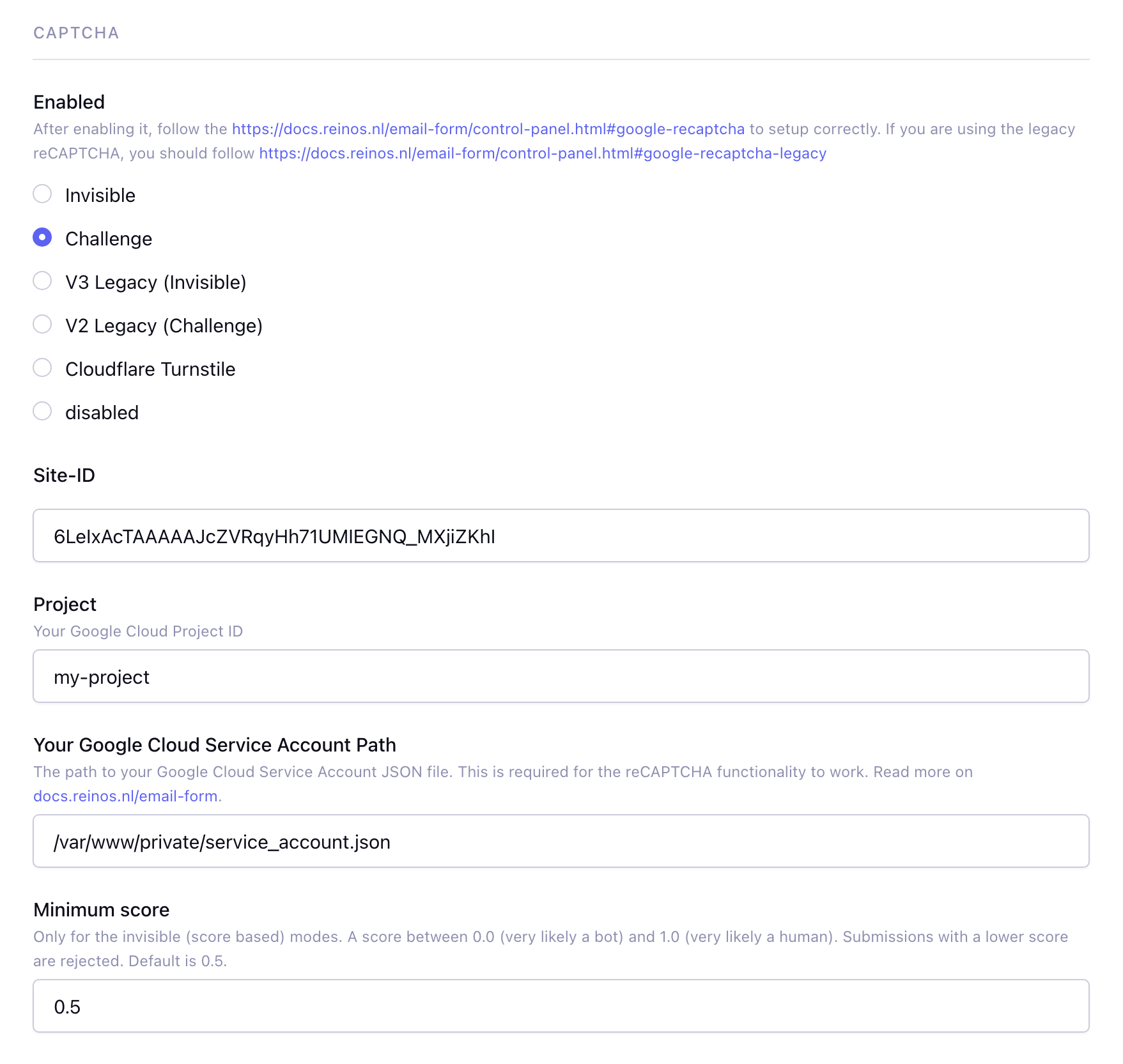
Fill in all required fields. Make sure to select the same reCAPTCHA type (Invisible or Challenge) that you chose earlier when creating the reCAPTCHA key.
Also, ensure the service_account.json file is uploaded securely—ideally outside the web root—and update the file path accordingly.
More info about ReCaptcha can be found in the blog here
Minimum score
Available from v5.7.0
Only for the invisible (score based) modes: Invisible and V3 Legacy (Invisible). reCAPTCHA gives every submission a score between 0.0 (very likely a bot) and 1.0 (very likely a human). Submissions with a lower score than this setting are rejected. Default is 0.5.
The token of the invisible modes is requested when the visitor submits the form, so it cannot expire while the visitor is filling in the form.
Google reCAPTCHA (legacy)
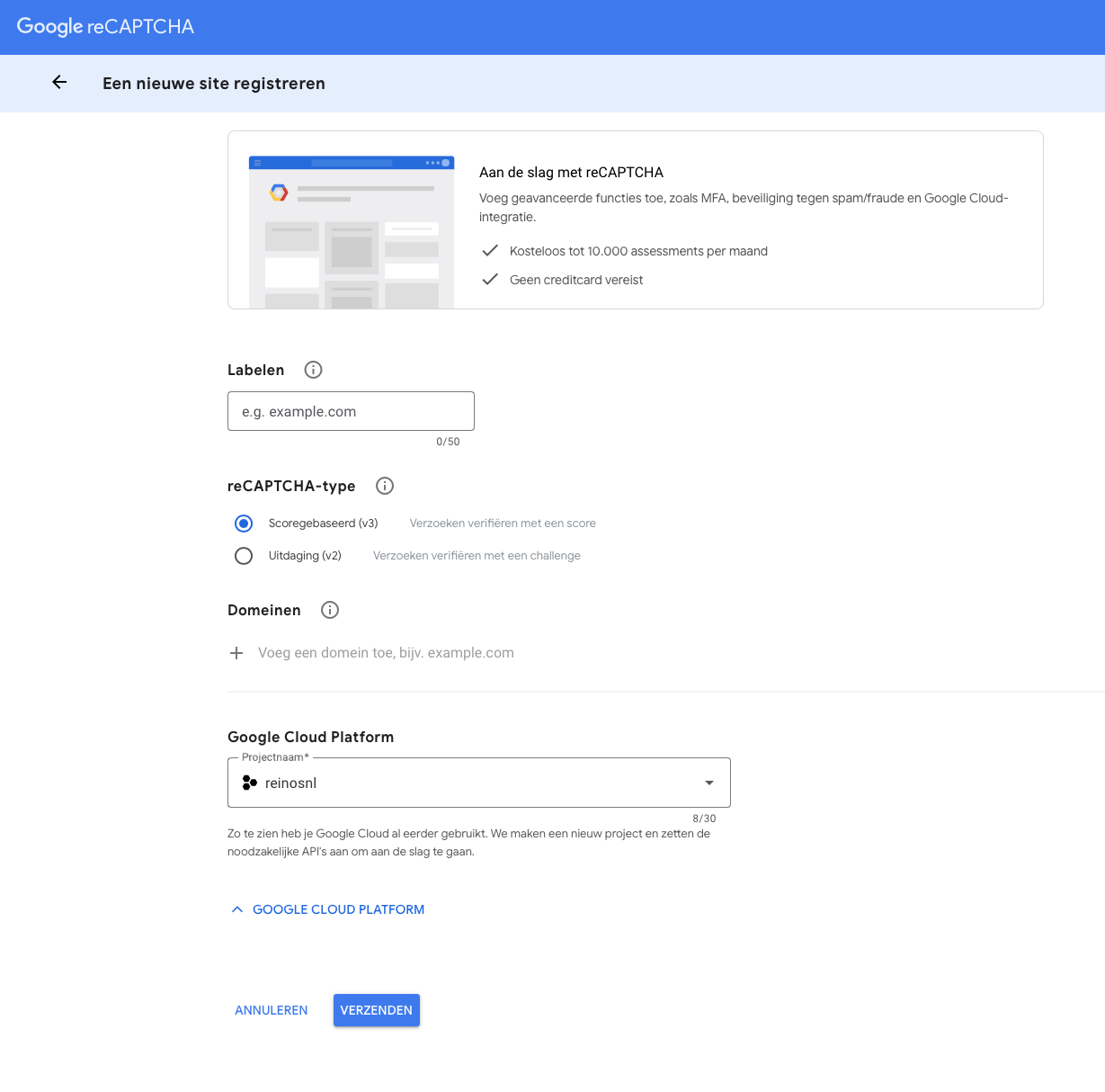
Beside the newly Cloud reCAPTCHA, we still have support for the old V2 and V3 reCAPTCHA. Simply select the V3 Legacy (Invisible) or V2 Legacy (Challenge) and enter your site key and secret.
Create legacy keys
Navigate to https://www.google.com/recaptcha/admin and click on the plus sign. Enter all the detail for your site and copy over the keys.
Cloudflare Turnstile
Available from v5.7.0
Cloudflare Turnstile is a privacy friendly alternative for reCAPTCHA, and does not need a Google Cloud service account.
- Log in to the Cloudflare dashboard and go to Turnstile.
- Click Add widget, enter a name and the domain(s) of your site and choose the widget mode.
- Copy the Site Key and Secret Key into the
Turnstile site keyandTurnstile secret keysettings and selectCloudflare Turnstile.
The token is verified server side, including the widget action (email_form).
Submissions
Submissions are saved by default (see the Save submission setting). Here you can view and delete them, or export them all to a CSV file with the export button.
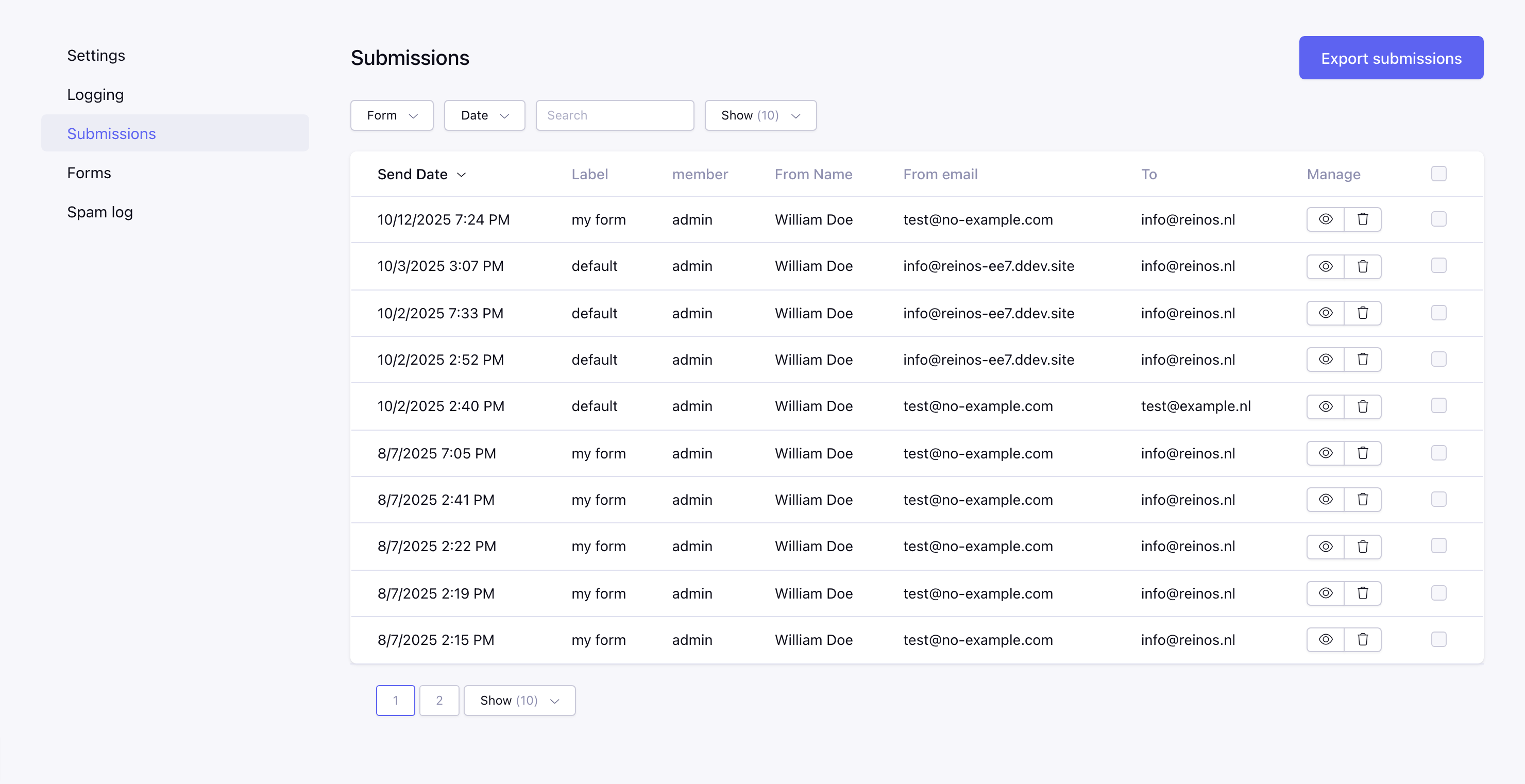
From v5.7.0 the submitted fields are saved as well: the detail page lists them and the export has a column per field. Use the filters to show (and export) the submissions of one form, a period (e.g. the last 30 days or a custom date) or a keyword; the keyword search looks in the subject, names, email addresses, content, fields and the member (username or screen name).
From v5.7.0 this is the page you see when you open the add-on. When Save submission is disabled, the Settings page is shown instead.
Spam log
Available from v5.7.0
The submissions that were blocked by the honeypot, the EE captcha, reCAPTCHA or Turnstile, the Rate limit, the Minimum submit time or the CSRF protection, with the reason, the detail (e.g. the reCAPTCHA score), the IP address, the user agent and the submitted fields. Use it to check for false positives, e.g. when the Minimum score is too strict. Filter on the reason and the date. The entries are deleted automatically after 30 days.
Logs
The log messages of the add-on, e.g. failed emails, a triggered honeypot or a rejected captcha. What is logged depends on the Logging setting.
Filters, bulk delete and export
Available from v6.0.0
Filter the logs on the severity (error or notice), a period (e.g. the last 30 days or a custom date) or a keyword in the message, and choose how many logs are shown per page. The filters are kept when you sort or go to another page.
Select logs with the checkboxes to delete them at once, or use Delete all logs to delete all logs of the current site. Export logs downloads the filtered logs as a CSV file (separated by ;).
Forms
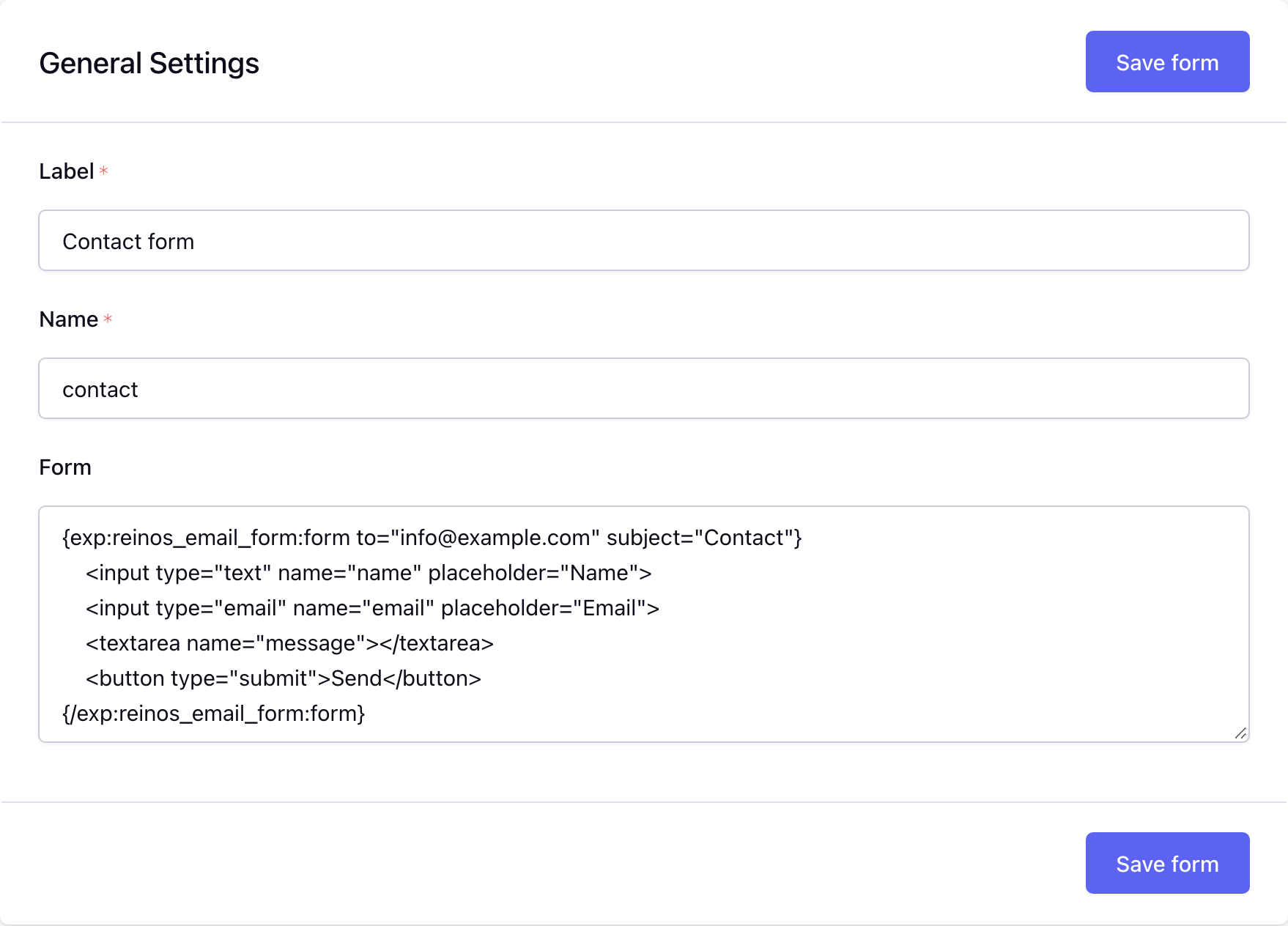
Forms added directly in your code can also be saved and managed in the control panel. This feature simplifies the process of editing forms once your site is live.
For example, when your code is version-controlled in Git, deploying minor changes to a form template can become unnecessarily complex. By saving your forms in the control panel, you can make quick edits directly from the interface without touching the codebase.
To display a saved form in your templates, you can use the following tag: {exp:reinos_email_form:get_form name='your_form_name'}
This approach offers both flexibility during development and convenience for ongoing maintenance.
Click Create Form to add a form: the label, the name you use in the get_form tag and the form itself.