
Appearance
The editor
Since v6.0.0 Wyvern is powered by CKEditor 5 (before that, CKEditor 4). Wyvern ships its own build of CKEditor 5 with the features below, you don't have to install anything. Which buttons an editor sees depends on the toolbar of the field.
Updating from Wyvern 5? Read Update to Wyvern 6.
Writing
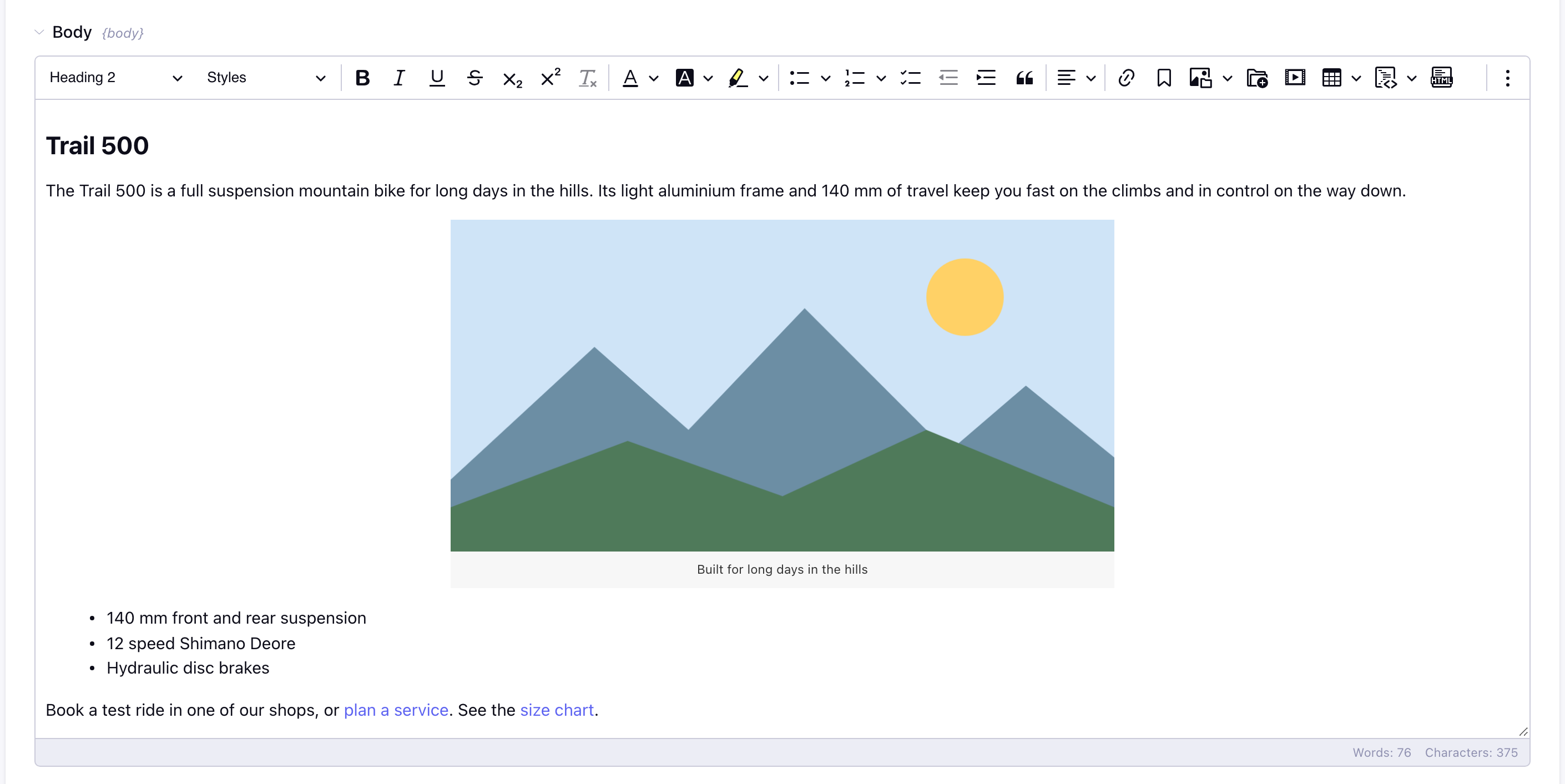
- Headings, paragraphs, block quotes, lists (with list styles, start number and reversed lists), to-do lists and indentation.
- Bold, italic, underline, strikethrough, subscript, superscript, inline code, font family, font size, font color, background color and highlight.
- The Styles dropdown with your own styles, see Path to custom JS file.
- Markdown style shortcuts while typing:
##for a heading,*or-for a list,1.for a numbered list,>for a quote,**bold**,_italic_and`code`. - Paste from Word and Google Docs with the formatting cleaned up.
- Find and replace, special characters, emoji, show blocks and fullscreen mode.
- Word and character count below the editor.
- The ✨ AI writing assistant, when it is turned on.
Links
Link to pages, entries, templates, files and bookmarks from the link balloon, or type @ and a title. See Links.
Images and files
- Insert images from the EE File Manager (or Assets). The EE File manager button inserts any file: images as image, other files as a link.
- Drag & drop or paste images straight into the editor. They are uploaded through the EE File Manager to the upload directory of the field, so they show up in Files and get their image manipulations. Select a specific upload directory in the field settings to enable this.
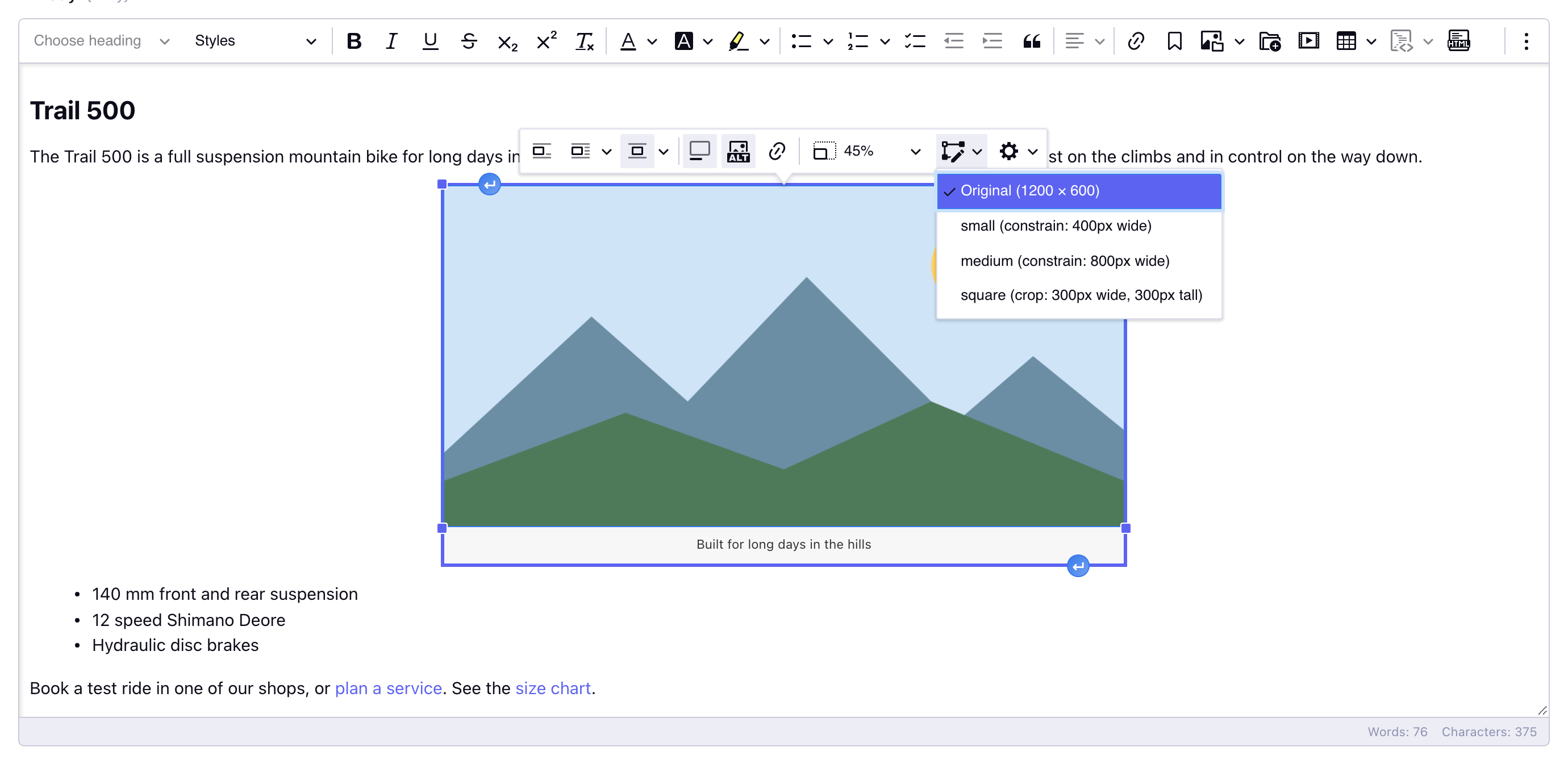
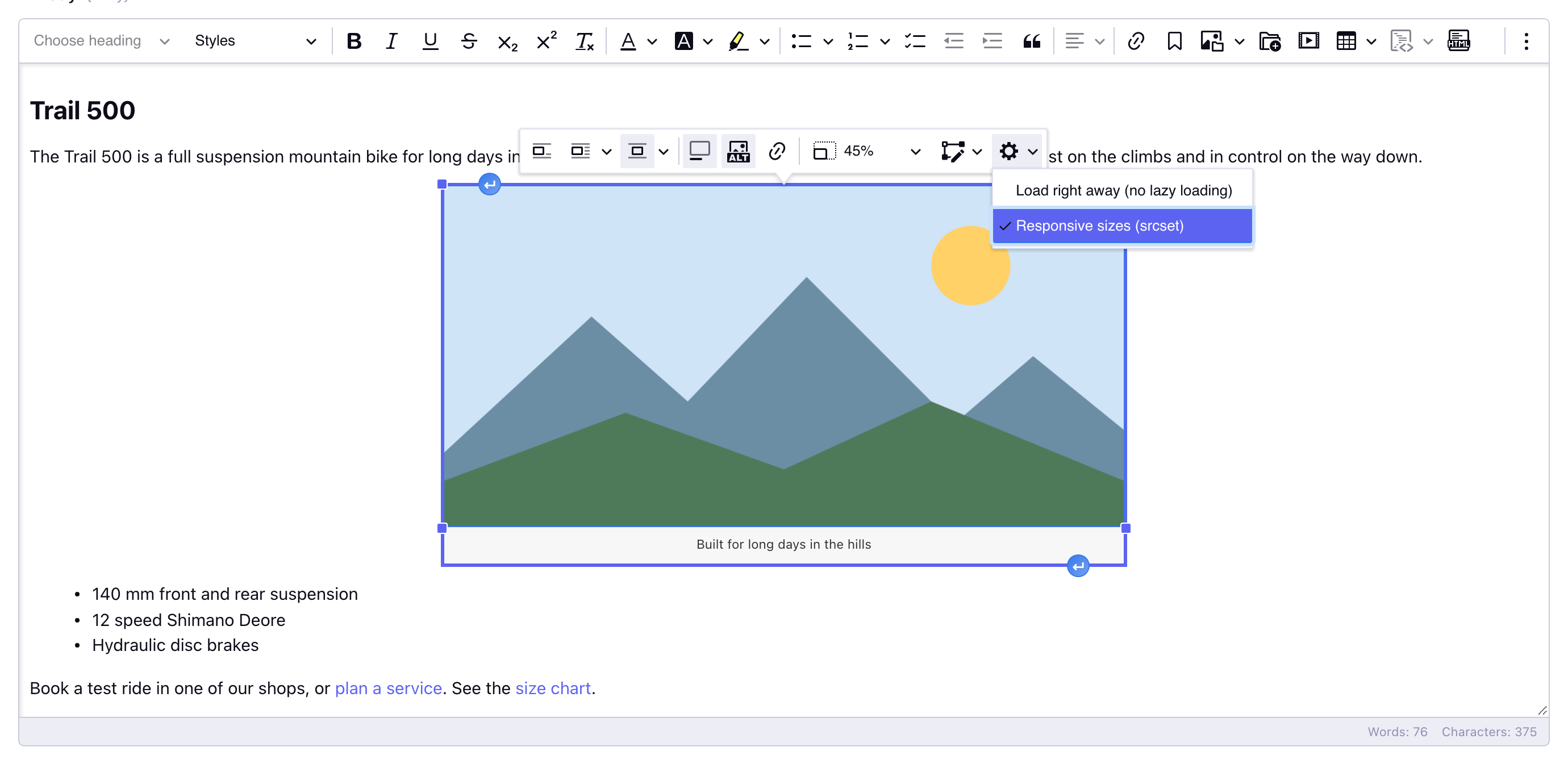
- The image toolbar has alignment, caption, alternative text, link and resize, plus:
- Image size: switch the image between the image manipulations of its upload directory (thumbnails, crops, ...);
- Image options (the cog): load the image right away instead of lazy, or leave it out of the responsive images.
Media, tables and code
- Media: paste a YouTube, Vimeo, Dailymotion or Spotify url to embed it. The embed code is saved in the content, so it works on your site without extra scripts.
- Tables with merged cells, column resizing, captions and table/cell properties.
- Code blocks for HTML, CSS, JavaScript, PHP, ExpressionEngine, JSON, SQL and shell.
- HTML snippet to add raw HTML, for example an iframe.
ExpressionEngine
- The editor follows the theme of the control panel (light, dark, ...) and the language of the logged in member.
- Works in Grid, Fluid, Channel Form and Low Variables.
- Typing quotes and dashes is not "smartened", so EE tags like
{exp:channel:entries channel="news"}keep working. - Which HTML is kept depends on the Allowed HTML of the toolbar: with Everything (the default for toolbars from before Wyvern 6) unknown elements, classes, styles and comments are preserved; Default and Strict clean up pasted HTML.
CKEditor license key
CKEditor 5 is available under an open source license (GPL 2 or later) and under a commercial license. Wyvern uses the open source license by default.
Set the key in Add-ons → Wyvern → Settings → CKEditor license key.
| Setting | Result |
|---|---|
| Empty (default) | CKEditor 5 runs under the GPL license. Every Wyvern feature works; the editor shows a small "Powered by CKEditor" badge in the bottom left corner of the text. |
| A commercial key | The key from your CKEditor customer portal is used, for example to remove the badge. |
| Anything else | Not a valid CKEditor 5 key (a key consists of three parts separated by dots). Wyvern ignores it, falls back to the GPL license and logs a warning in the browser console. |
WARNING
This is not your Wyvern license, Wyvern has no license key of its own anymore (see License). A license key from Wyvern 5 is never sent to CKEditor.
Good to know:
- Wyvern only contains the open source features of CKEditor 5. A commercial key does not add premium features such as CKEditor's own AI, track changes or export to PDF/Word.
- Whether the GPL license fits your project is up to you, see the CKEditor licensing options.
- The Emoji button loads its list of emoji from
cdn.ckeditor.com. Leave it off the toolbar if your editors should not make requests to that CDN.
Configuration
Use Extra CKEditor Config Options to change the CKEditor 5 configuration. All options are described in the CKEditor 5 documentation.