
Appearance
Settings
The global settings of Wyvern are in Add-ons → Wyvern → Settings. The AI writing assistant has a page of its own, the settings of a field are in its field settings.
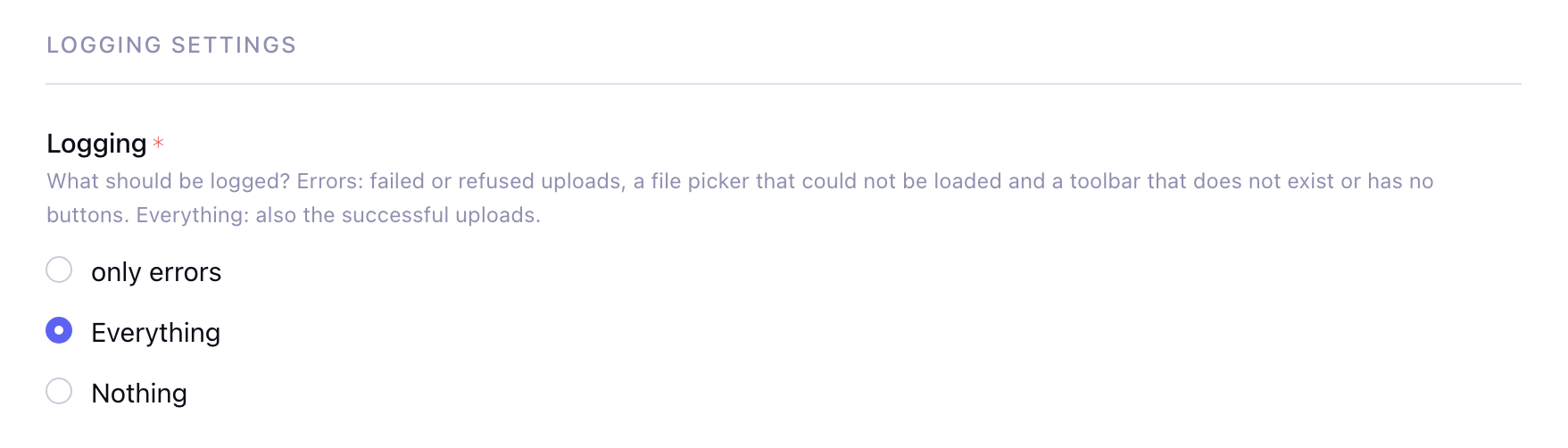
Logging
What Wyvern writes to its log, shown under Logging in the sidebar of the add-on:
- only errors (default): failed or refused uploads (with the reason, the file name and the member), a file picker that could not be loaded, a field whose toolbar does not exist (anymore) or has no CKEditor 5 buttons, and failed AI requests. Problems that occur on every page load are logged once a day.
- Everything: the errors, plus every successful upload and the reasons why an image gets no responsive
srcset. - Nothing: nothing is logged.
The requests of the AI writing assistant are logged with their tokens and costs with only errors as well, they cost money. When you update to Wyvern 6, the CKEditor 4 buttons of your toolbars that no longer exist are logged once, whatever this setting is.
Log page
Filter the logs on the severity (error or notice), a period (e.g. the last 30 days or a custom date) or a keyword in the message, and choose how many logs are shown per page. The filters are kept when you sort or go to another page.
Select logs with the checkboxes to delete them at once, or use Delete all logs to delete all logs of the current site. Export logs downloads the filtered logs as a CSV file (separated by ;).
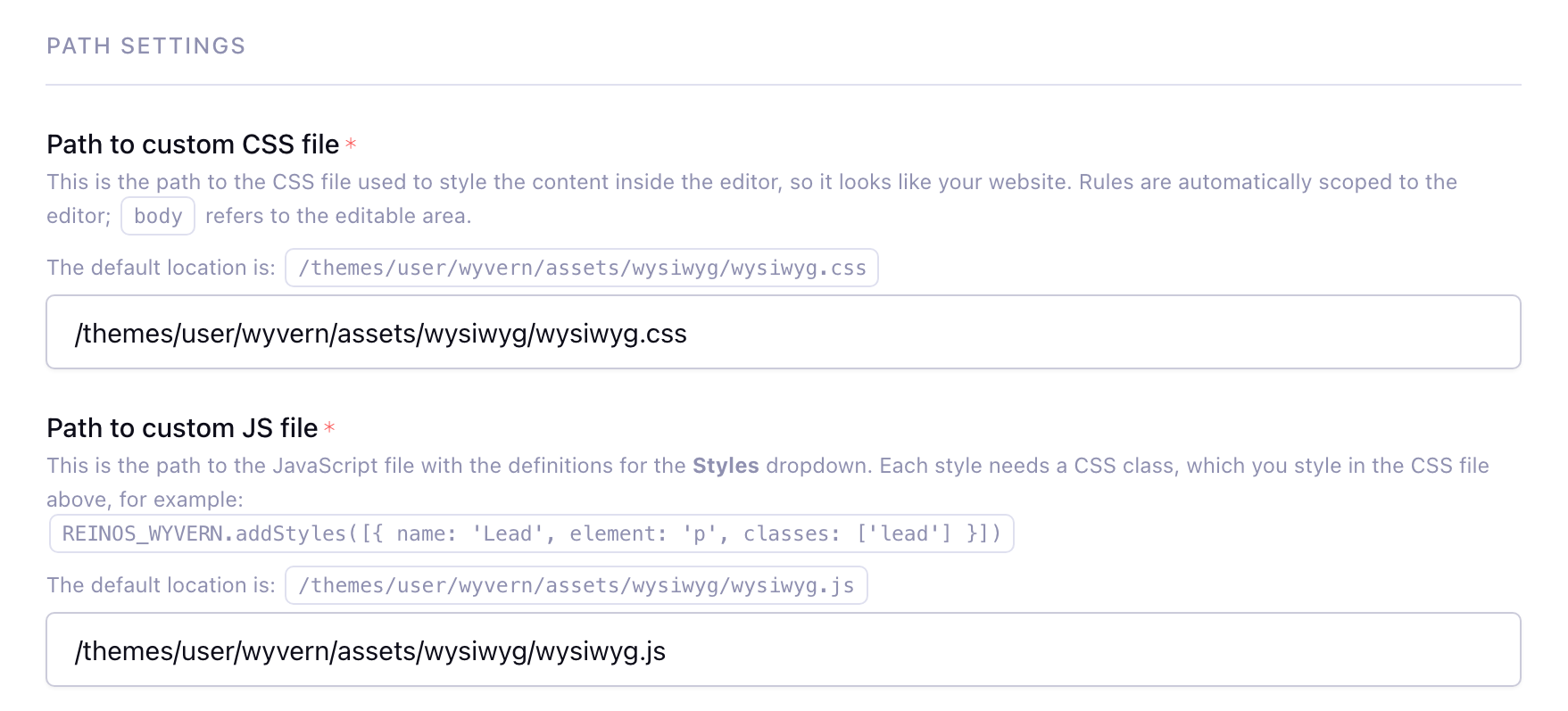
Path to custom CSS file
The CSS file that styles the content inside the editor, so it looks like your website.
Every rule is scoped to the editor automatically: body (and html) refer to the editable area, so you can style it as if it were a page of its own. Relative url() references are resolved from the location of the stylesheet.
The default location is: /themes/user/wyvern/assets/wysiwyg/wysiwyg.css
Path to custom JS file
The JavaScript file with the definitions for the Styles dropdown in the toolbar. Every style needs an element and one or more CSS classes; style those classes in the CSS file above and on your site.
js
REINOS_WYVERN.addStyles([
    // block styles
    { name: 'Lead paragraph', element: 'p', classes: ['lead'] },
    { name: 'Info box', element: 'p', classes: ['info-box'] },
    // inline styles
    { name: 'Marker', element: 'span', classes: ['marker'] },
]);
The default location is: /themes/user/wyvern/assets/wysiwyg/wysiwyg.js. Files in the CKEditor 4 format (CKEDITOR.stylesSet.add()) still work for styles that use a class, see Update to Wyvern 6.
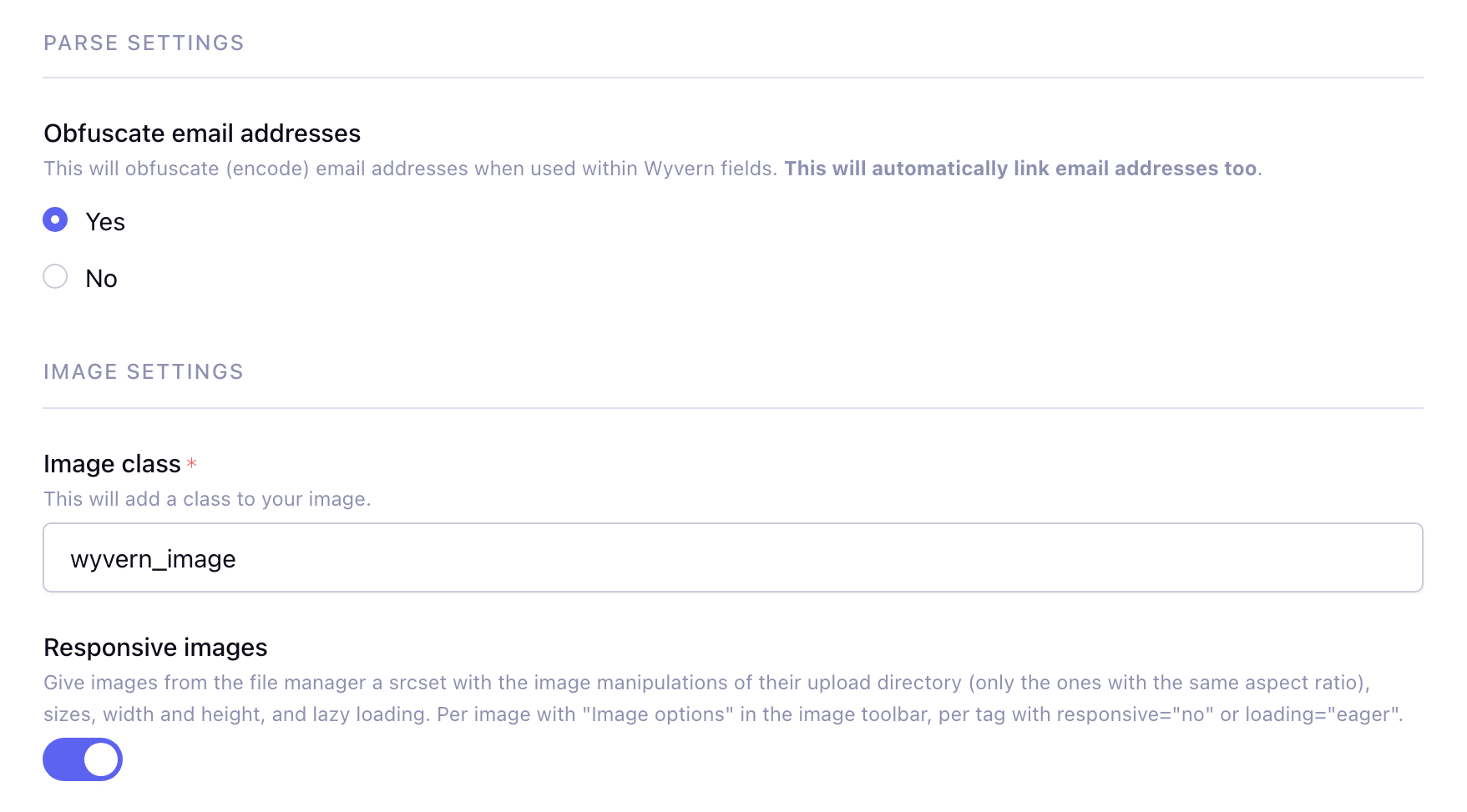
Obfuscate email addresses
Obfuscates (encodes) email addresses in Wyvern fields on your site, against spam bots. Email addresses are linked automatically too.
Image class
A class that is added to every image in Wyvern fields on your site. Default: wyvern_image. Add more per tag with the image_class parameter.
Responsive images
Available from v6.0.0
Gives images from the File Manager a srcset with the image manipulations of their upload directory, sizes, width/height and lazy loading. Default: on. See Responsive images.
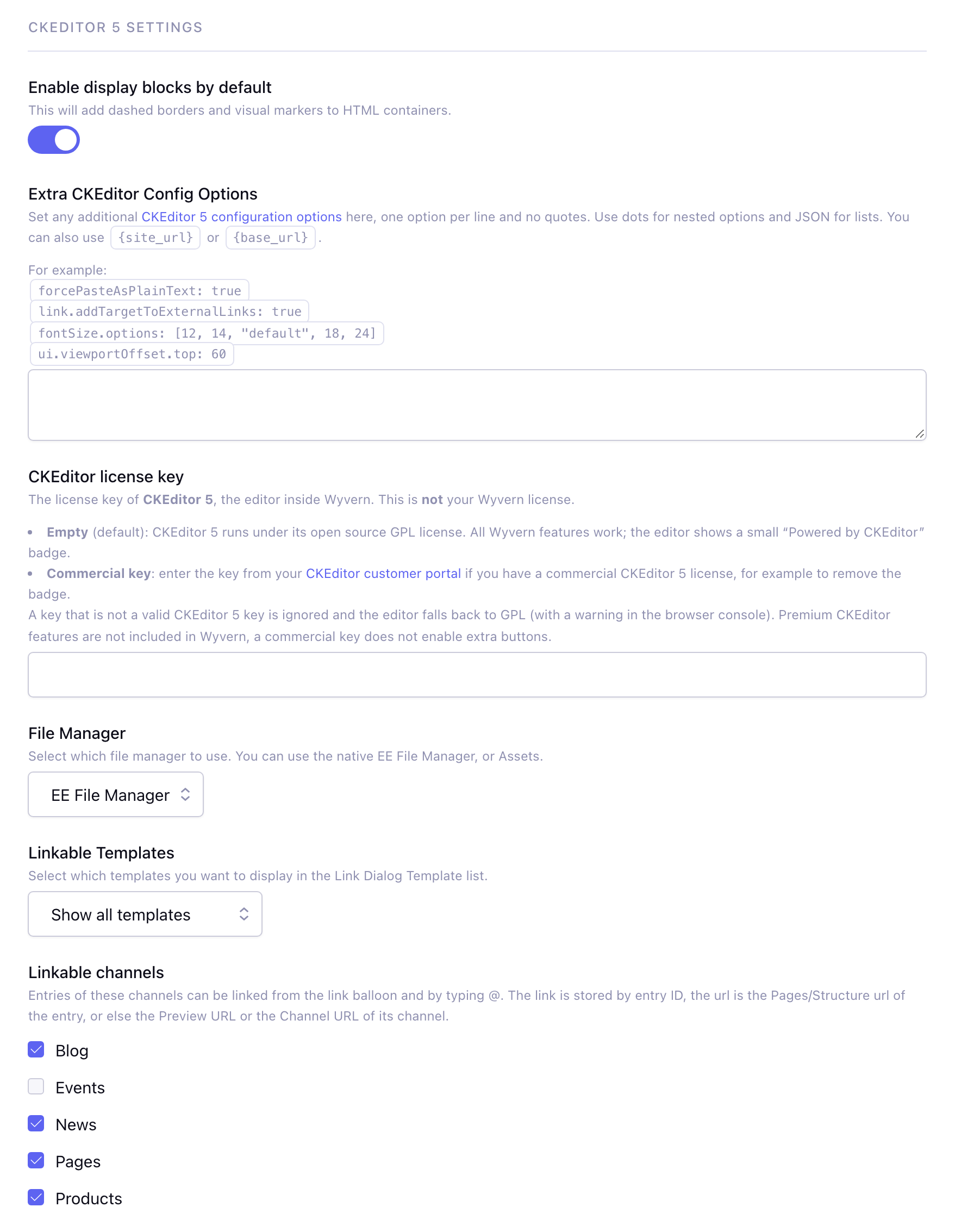
Enable display blocks by default
Shows the outlines and names of the HTML blocks ("Show blocks") when the editor starts.
Extra CKEditor Config Options
Set any additional CKEditor 5 configuration options here, one option per line in the format option: value, without quotes around the value.
- Use dots for nested options:
link.addTargetToExternalLinks: true. - Use JSON for lists and objects:
fontSize.options: [12, 14, "default", 18, 24]. true,falseand numbers are converted automatically.{site_url}and{base_url}are replaced with their values.
forcePasteAsPlainText: true
link.addTargetToExternalLinks: true
fontSize.options: [12, 14, "default", 18, 24]
ui.viewportOffset.top: 60
forcePasteAsPlainText: true is a Wyvern option: everything that is pasted from outside the editor becomes plain text.
CKEditor license key
Available from v6.0.0
The license key for a commercial CKEditor 5 license. Leave it empty to use CKEditor 5 under its open source GPL license. This is not your Wyvern license. See CKEditor license key.
File Manager
The file manager of the image and file buttons: the native EE File Manager, or Assets (when it is installed).
Linkable Templates
The templates in the Templates list of the link balloon: all templates, the templates of some template groups, or a selection of templates. See Links.
Linkable channels
Available from v6.0.0
The channels whose entries can be linked from the Entries list of the link balloon and by typing @. Empty (the default) hides the list. See Links.
Debug mode
Loads the unminified JavaScript and CSS of the editor, for debugging.
Default toolbar
The toolbar that is used when no toolbar is selected for the role of the member in the field settings, or when a guest is posting via Channel Form.
AI writing assistant
The settings of the ✨ button of the editor have their own page: Add-ons → Wyvern → AI writing assistant. See AI writing assistant.