
Appearance
CP Presets
In order to use Iconfont you need to create a preset from the Module CP preset page. A preset is a set of icons of one provider, every field uses a preset.
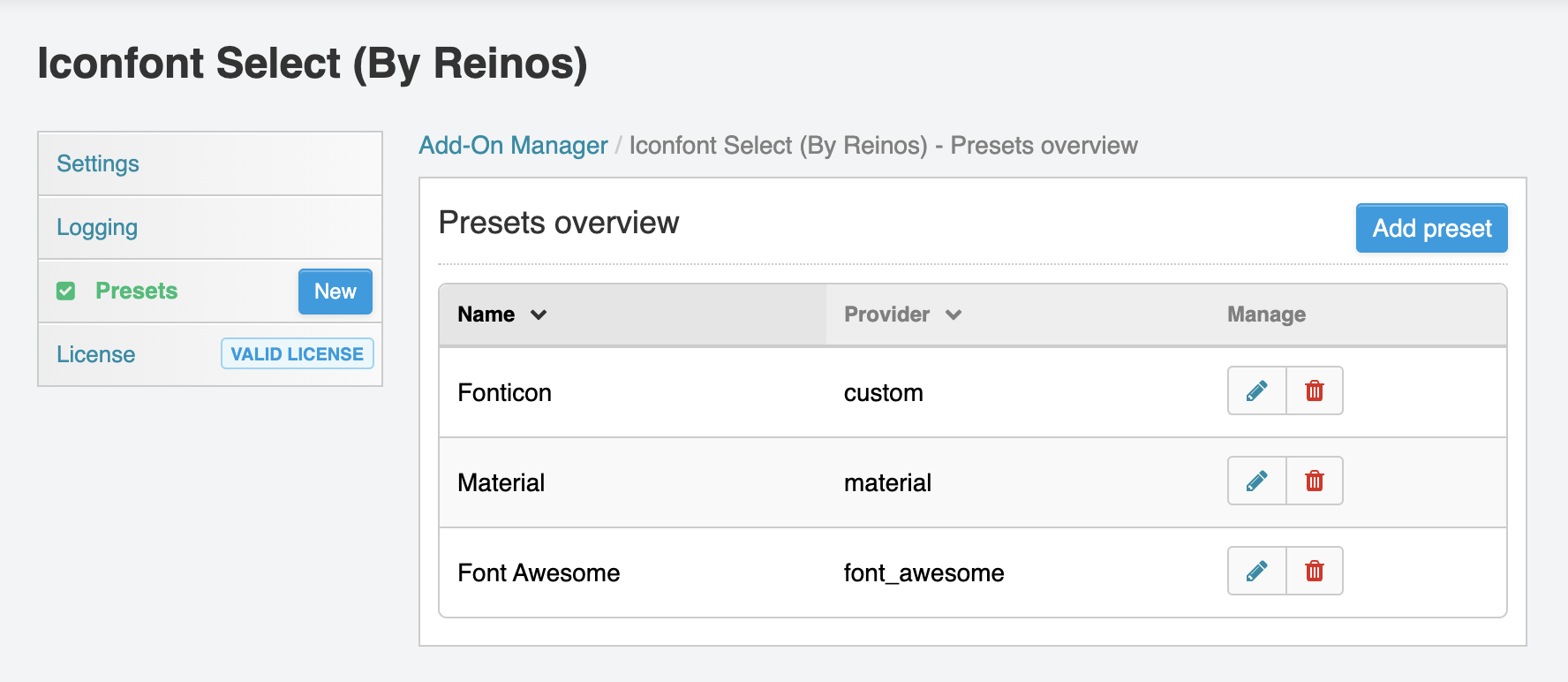
On a new install we create presets for Font Awesome, Material Icons and Material Symbols, with the whole set of icons.
Providers
| Provider | Output | Options |
|---|---|---|
| Font Awesome | <i class="fa-solid fa-house"> | Kit or CSS url |
| Material Icons | <span class="material-icons">home</span> | Style |
| Material Symbols | <span class="material-symbols-outlined">home</span> | Style |
| Iconify (SVG) | inline <svg> | Icon sets |
| SVG files | inline <svg> | Upload directory |
| Custom | <i class="icon-home"> | CSS url(s), import |
Font Awesome
By default Font Awesome 6 Free is loaded from the cdnjs CDN. To use Font Awesome Pro or another version, enter your Kit url (https://kit.fontawesome.com/xxxx.js) or the url of your stylesheet in Kit or CSS url.
Available from v2.0.0
Material Icons and Material Symbols
Choose the style of the font: filled, outlined, round, sharp or two-tone for Material Icons, and outlined, rounded or sharp for Material Symbols.
Available from v2.0.0
Iconify (SVG)
With the Iconify provider you can use any of the 150+ icon sets on Iconify. Enter the prefixes of the sets you want, comma separated (e.g. lucide, tabler, mdi, bi, heroicons), and click Load default set to build the icon list. The icons are SVG, so there is no font to load.
The icons are loaded from the public Iconify API. In the general settings you can enter the url of a self hosted Iconify API instead.
Available from v2.0.0
SVG files
Use your own svg files, for example your own icons or brand logos. Choose the upload directory with the svg files in Upload directory; only local upload directories can be used. Subfolders become categories in the icon picker.
When the icon list is empty, every svg file in the directory is available, so new uploads show up right away. Click Load default set to fix the list to the current files instead. An icon is stored as the path of the file within the upload directory, e.g. brands/github.svg.
Uploaded svg files can contain scripts, so before a file is placed inline it is sanitized: only known svg elements and attributes are kept, scripts, styles, event handlers and external references are removed. Files larger than 256kb are not placed inline. Use fill="currentColor" in your svg files to give the icons the color of the text.
Available from v2.0.0
Your own font
Loading your own font into the fieldtype is also very easy but it requires that the fonts are included in a .css file.
From there you can enter your css url in the field css url(s).
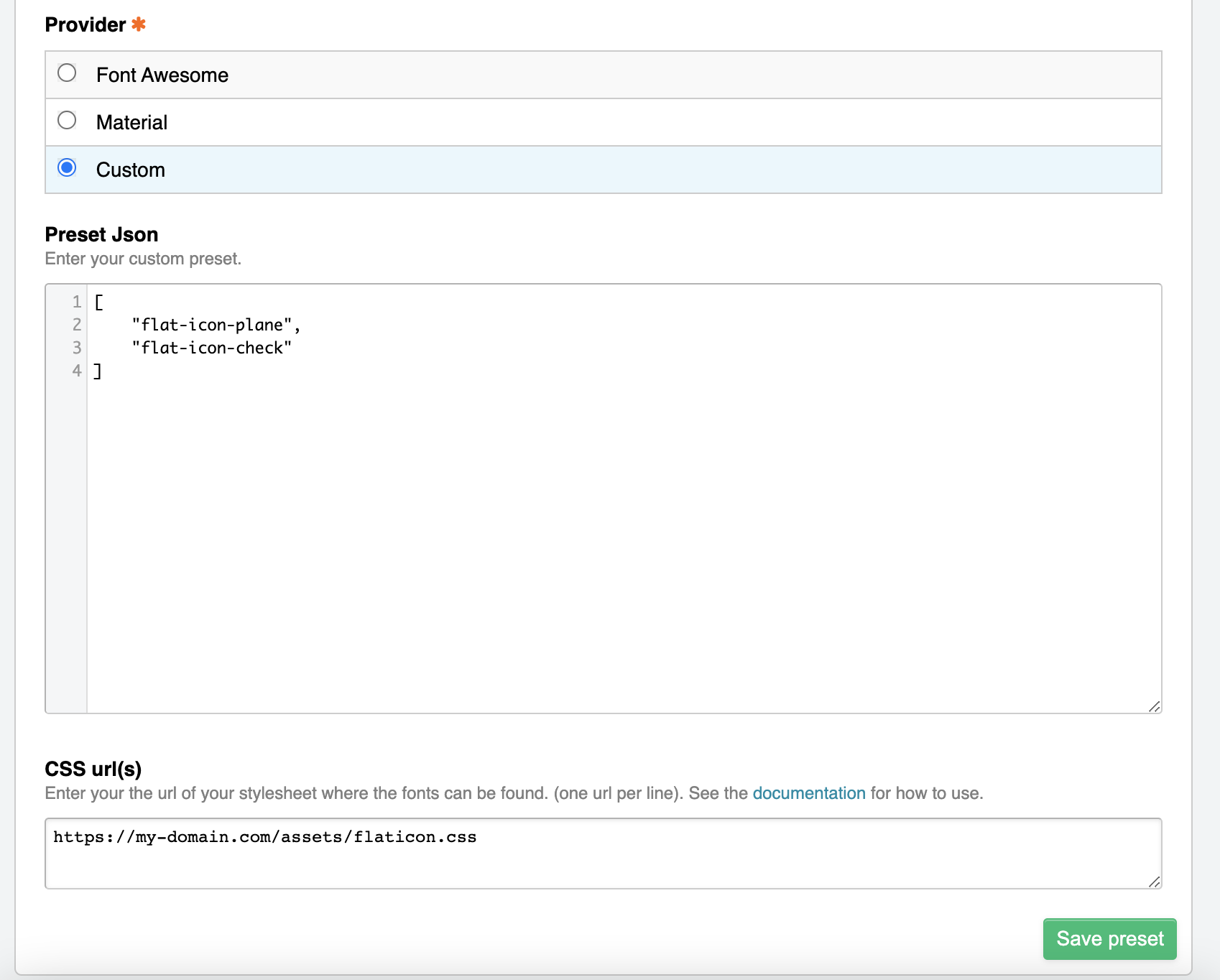
The above images shows an example of using flaticon fonts (See https://www.flaticon.com/)
Import the icons
You don't have to write the icon list yourself:
- Import from the CSS urls reads your stylesheet(s) and collects every icon class, based on rules like
.icon-home:before { content: "\e900" }. - Import IcoMoon / Fontello json reads an IcoMoon
selection.jsonor a Fontelloconfig.json.
If every icon also needs a base class (e.g. fa or icon), enter it in Base class.
Available from v2.0.0
Icon list
To start with the basic, you can click on the Load default set button that will load all available icons for that provider. From here you can start modifying the preset to a set of icons you need.
When the icon list of a Font Awesome or Material preset is empty, the full default set is used. For SVG files all files in the upload directory are used.
JSON preset structure
We use JSON to feed the icon picker with the icons.
The JSON accept 2 formats, it's eiter a list of icons, or it's a list with categories.
Plain list of icons
[
    "fa-brands fa-accessible-icon",
    "fa-solid fa-hands-asl-interpreting",
    "fa-solid fa-ear-listen",
    "fa-solid fa-audio-description",
    "fa-solid fa-person-walking-with-cane"
]
Group of icons
{
    "Category name" : [
        "fa-brands fa-accessible-icon",
        "fa-solid fa-hands-asl-interpreting",
        "fa-solid fa-ear-listen"
    ]
}
For Iconify presets an icon is prefix:name, e.g. lucide:house. For SVG files it is the path of the file, e.g. brands/github.svg.
Duplicate, export and import
In the presets overview you can duplicate a preset, or export it as a JSON file. With Import preset you import that file again, for example on another site or to move presets from development to production.
Available from v2.0.0