
Appearance
AI writing assistant
Available from v6.0.0
The ✨ button in the editor helps editors write: a first version of a text based on the entry, or a better, shorter, longer or translated version of a selection. It works with Claude (Anthropic), OpenAI or Gemini (Google) and your own API key: you pay the provider per use, there is no extra license.
The AI only writes a proposal. Nothing is changed until the editor clicks Insert or Replace, and that is one step to undo.
Setup
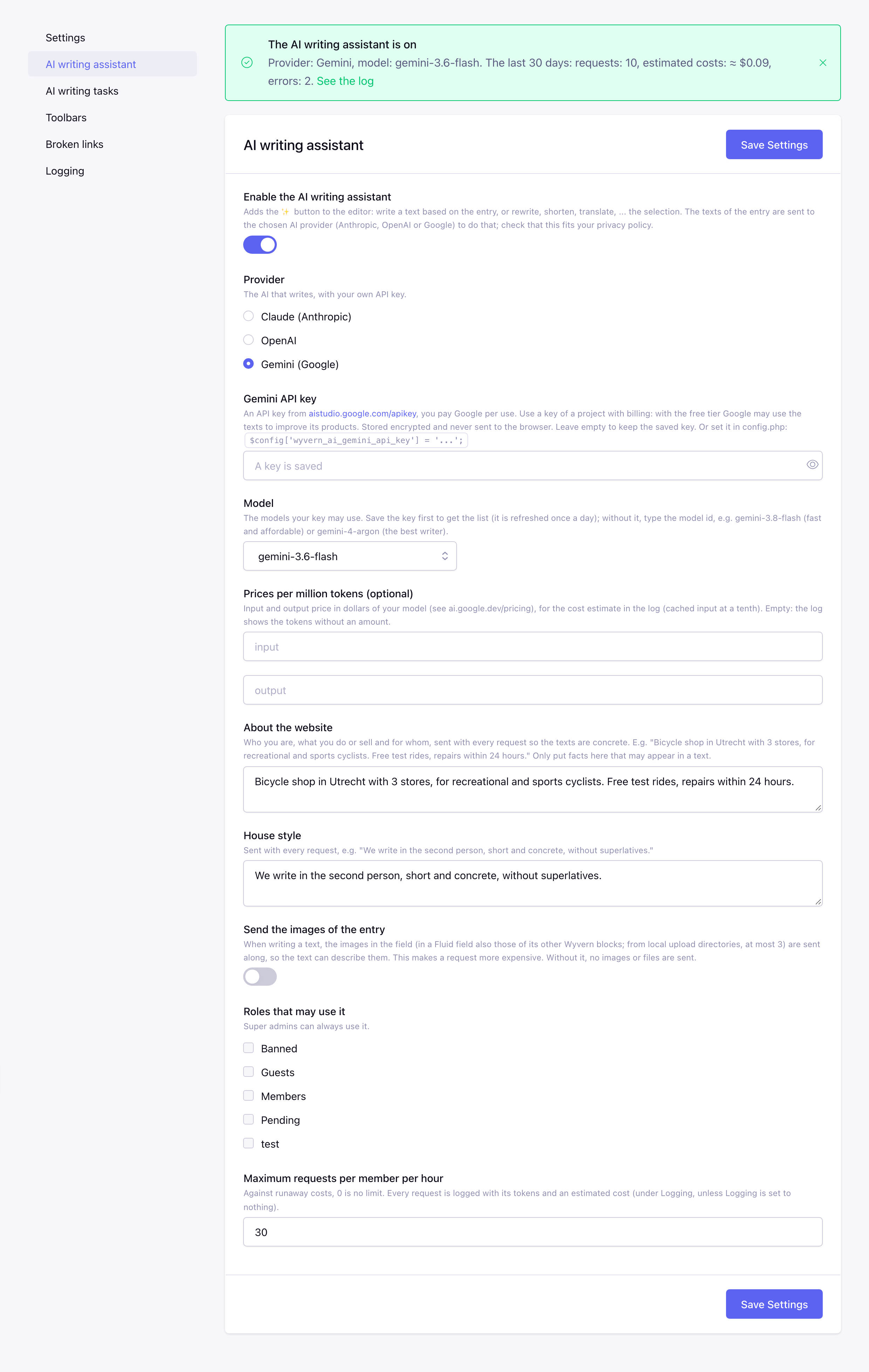
Go to Add-ons → Wyvern → AI writing assistant. At the top it shows whether the assistant is on, the provider and model, and the requests, estimated costs and errors of the last 30 days (with a link to the log).
| Setting | |
|---|---|
| Enable the AI writing assistant | Off by default. The texts of the entry are sent to the chosen provider, check that this fits your privacy policy. |
| Provider | Claude (Anthropic, the default), OpenAI or Gemini (Google). All keys are kept, so you can switch. |
| Claude API key | An API key from platform.claude.com. Stored encrypted and never sent to the browser. Leave the field empty to keep the saved key. Or set it in config.php. |
| Model (Claude) | Claude Opus 5.5 (default) writes best, Claude Sonnet 5.5 is cheaper, Claude Haiku 5.5 the cheapest and fastest. |
| OpenAI API key | An API key from platform.openai.com/api-keys. The API needs prepaid credit (Settings → Billing), a ChatGPT subscription does not include it. Stored encrypted, or set it in config.php. |
| Model (OpenAI) | After saving the key: a list of the text models your key may use (refreshed once a day). Without a saved key, or when the list can not be loaded: type the model id from your OpenAI dashboard, e.g. gpt-6-astra (the default). |
| Prices per million tokens (OpenAI) | Optional: the input and output price of your model in dollars, for the cost estimate in the log. Empty: the log shows the tokens without an amount. |
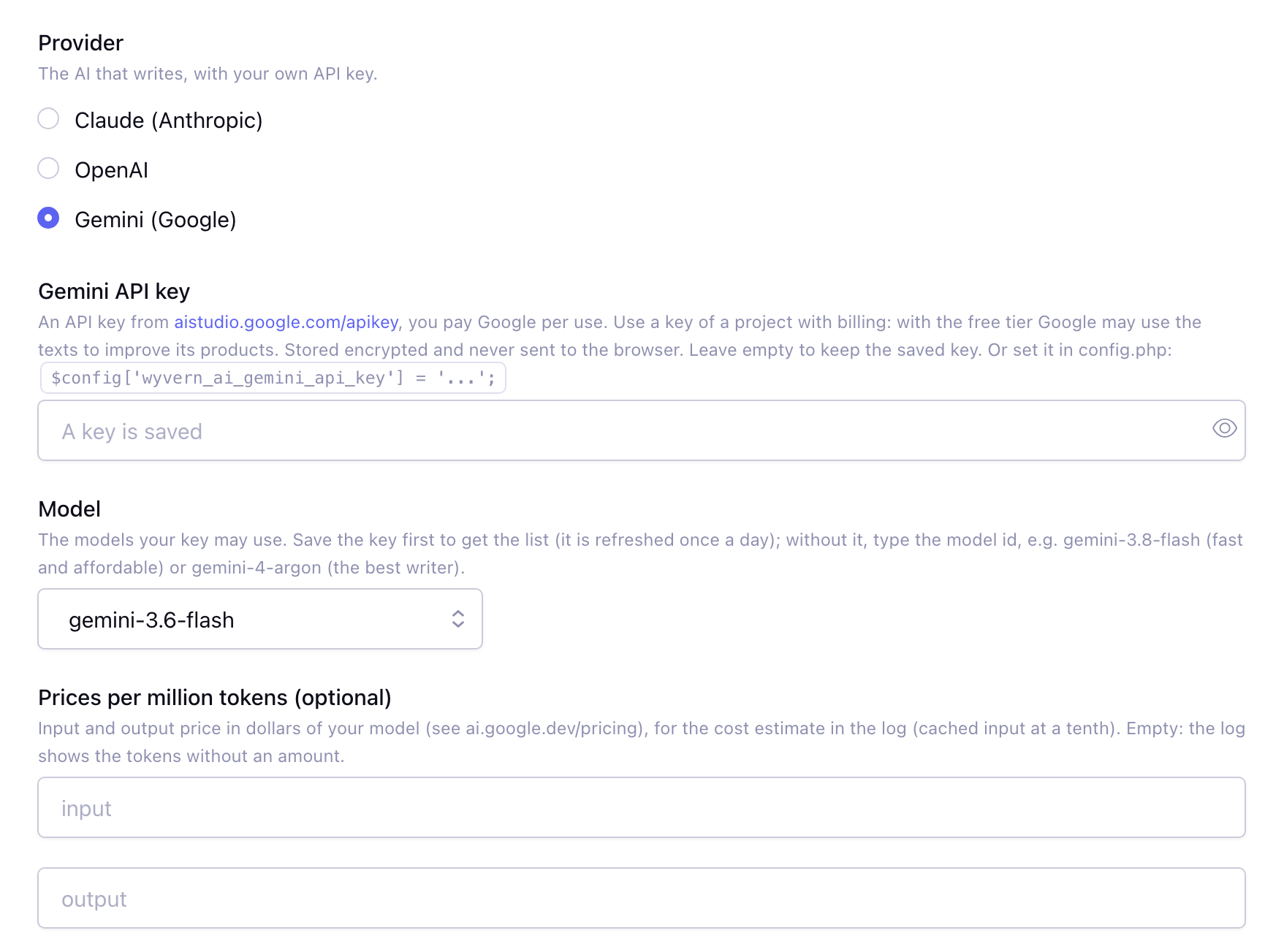
| Gemini API key | An API key from aistudio.google.com/apikey. Use a key of a project with billing turned on: with the free tier Google may use the texts to improve its products. Stored encrypted, or set it in config.php. |
| Model (Gemini) | After saving the key: a list of the text models your key may use (refreshed once a day). Without a saved key, or when the list can not be loaded: type the model id, e.g. gemini-3.8-flash (the default, fast and affordable) or gemini-4-argon (writes best). |
| Prices per million tokens (Gemini) | Optional, like OpenAI: the input and output price of your model from the Gemini pricing, for the cost estimate in the log. |
| About the website | Who you are, what you do or sell and for whom, sent with every request so the texts are concrete. E.g. "Bicycle shop in Utrecht with 3 stores, for recreational and sports cyclists. Free test rides, repairs within 24 hours." Only put facts here that may appear in a text. |
| House style | Sent with every request, e.g. "We write in the second person, short and concrete, without superlatives." |
| Send the images of the entry | When writing a text, the images in the field (in a Fluid field also those of its other Wyvern blocks; at most 3, from local upload directories) are sent along so the text can describe them. Off by default: it makes a request more expensive. Without it, no images or files are sent. |
| Roles that may use it | Super admins can always use it. |
| Maximum requests per member per hour | Against runaway costs, 0 is no limit. Default: 30. |
Where the API key is stored
The key can be saved in two places. Both work; choose what fits your site.
On the settings page (in the database)
The key is stored encrypted in the database, with the encryption_key of ExpressionEngine (in system/user/config/config.php). It is decrypted on the server only when a request is made; the key field stays empty after saving, and the key is never sent to the browser or written to the log.
This protects the key when only the database leaks, for example a database dump or backup that is shared. It does not protect against someone who has both the database and the files of the site: Wyvern has to be able to decrypt the key itself, so whoever has the encryption_key can too.
In config.php (recommended)
Set the key in system/user/config/config.php, ideally from an environment variable of the server:
php
$config['wyvern_ai_api_key'] = getenv('WYVERN_AI_API_KEY');               // Claude
$config['wyvern_ai_openai_api_key'] = getenv('WYVERN_AI_OPENAI_API_KEY'); // OpenAI
$config['wyvern_ai_gemini_api_key'] = getenv('WYVERN_AI_GEMINI_API_KEY'); // Gemini
This is safer: the key is not in the database at all, so not in database dumps, backups or a copy of the site for a developer. It lives with the other secrets of the server, such as the database password, and it can differ per environment (local, staging, live).
| Key in config.php | Key on the settings page | Used |
|---|---|---|
| – | ✓ | the key of the settings page |
| ✓ | – | the key of config.php |
| ✓ | ✓ | the key of config.php; the saved key stays in the database, unused |
While a key is set in config.php, the settings page shows Set in config.php instead of the key field of that provider. Remove the line from config.php to use (or change) the key of the settings page again.
The ✨ button is added at the end of every toolbar of members that may use it. Add AI writing assistant in the toolbar builder to put it somewhere else.
Using it
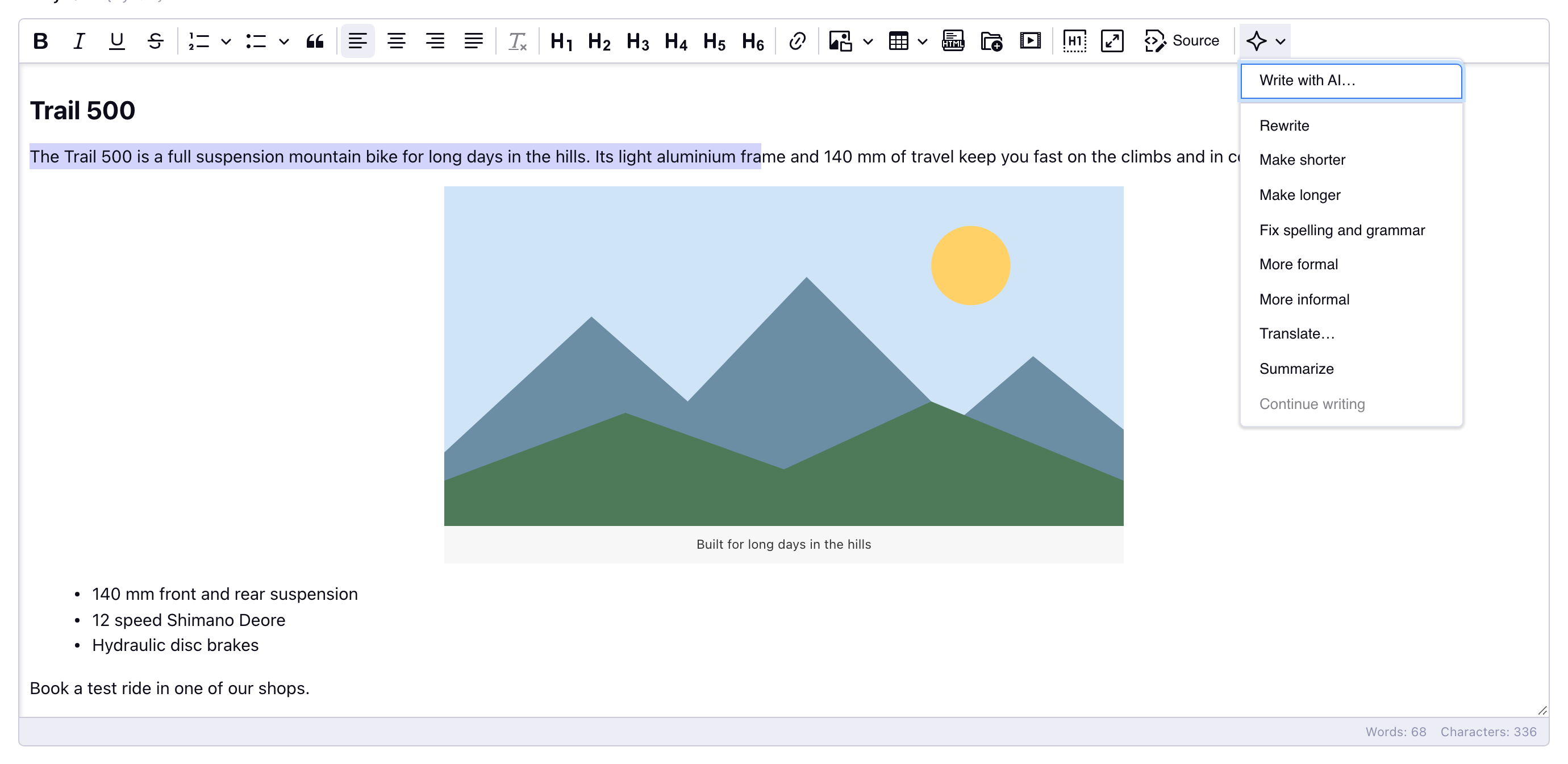
Click ✨ in the toolbar. Write with AI… and Ask AI… are always available, the other items need a selection (Continue writing a cursor).
Write with AI
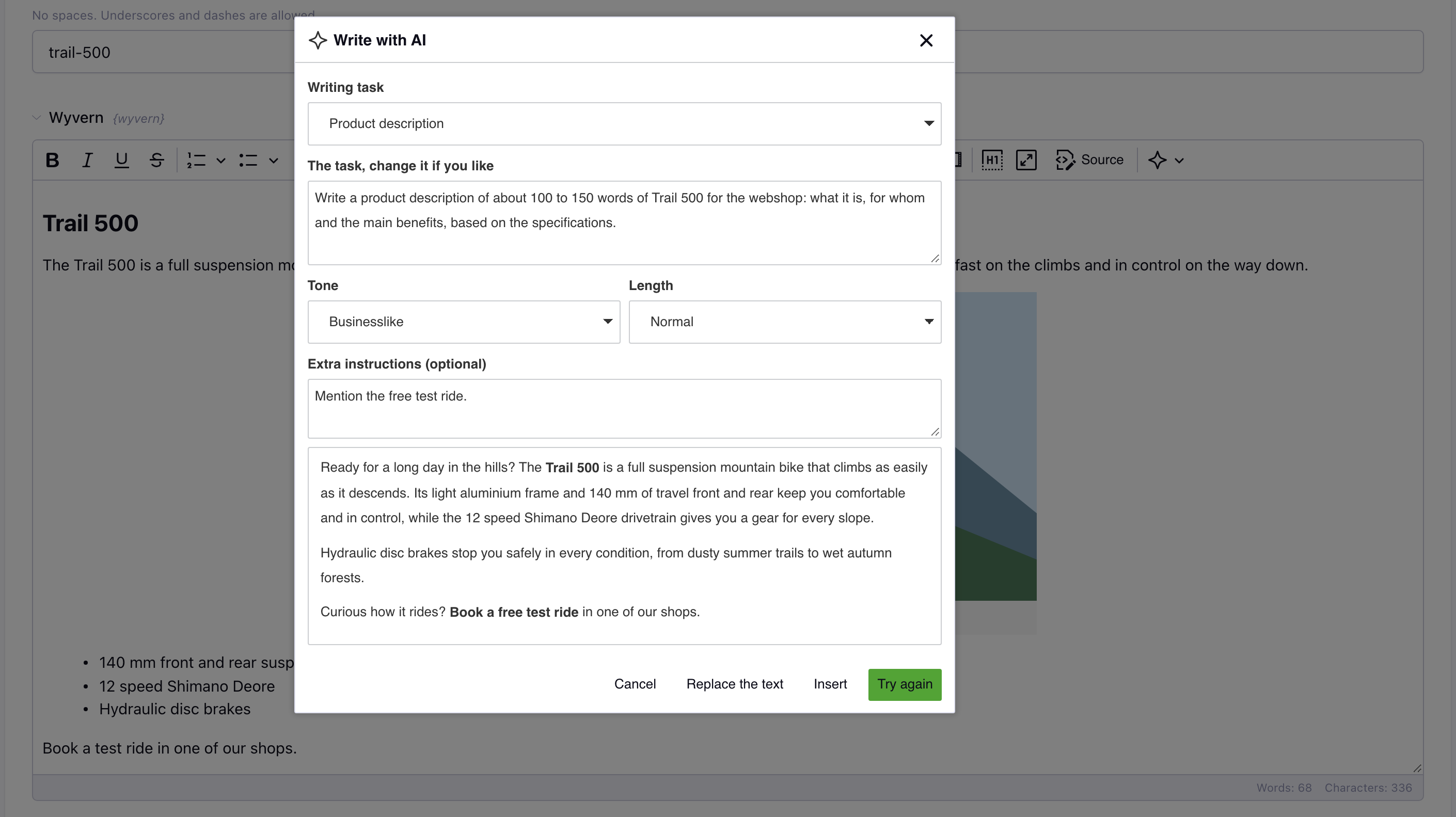
Write with AI… writes a text for the entry. Choose:
- Writing task: a task of the library, e.g. Product description or Meta description, already filled in with what is on the publish form; change it if you like. Or Something else… and type what you want to write, e.g. an introduction. Without writing tasks in the library you only get the second;
- Tone: businesslike, informal or enthusiastic;
- Length: short (50-80 words), normal (150-250) or long (400-600), unless the writing task says otherwise;
- Extra instructions, e.g. mention the 2 year warranty. They take precedence over the writing task, the tone and the length.
Click Generate: the text appears while it is being written. Then Insert (at the cursor), Replace the text (the whole field), Try again or Cancel.
Ask AI
Ask AI… does what you type, e.g. add a paragraph about the new toolbar builder, correct the text and make the headings shorter or turn this into a list. Click Generate, then:
- with a selection it works on the selected text: Replace replaces the selection, Insert puts the answer after it;
- without a selection it works on the whole text of the field: Replace the text replaces the whole field, Insert puts the answer at the cursor. Ask for a change and you get the whole changed text, ask for something new and you get only the new text.
The AI gets the same as with Write with AI.
Links
The AI cannot open links. When an instruction has a link, the dialog shows a hint: paste the text the AI should use (e.g. a part of a changelog) into the instructions instead.
What the AI knows
You don't have to explain the entry in the writing task, this is sent along automatically:
- the title and the other filled in fields of the entry, with the titles of related entries (Relationships) and the checked categories;
- the field: its label, the channel of the entry and the Instructions of the field (as set in Developer → Fields), so the AI follows the instructions you already gave your editors;
- the existing text of the field, so the new text can replace it;
- Fluid and Grid: the other blocks of the page or the other cells of the row;
- About the website and the House style of the settings;
- the images, only when Send the images of the entry is on.
Fluid and Grid
In a Fluid field a page is built from many small blocks, a Wyvern block on its own knows little about the page. Therefore the AI gets all blocks of the Fluid field in their order, the block it writes for marked, e.g.
1. Heading: Our story
2. Text: Since 1987 we repair and sell bicycles in Utrecht...
3. Text [THIS BLOCK]
4. Quote group / Quote: The best service in town
5. Gallery (no text)
It writes only that block, connects to the blocks before and after it and doesn't repeat what they already say. The blocks right next to it are sent in full (up to 3000 characters), the others shortened. Only the text of Wyvern, Textarea, Text Input and Rich Text blocks is sent; other blocks (Grid, File, Relationships, ...) only with their label. Images only with the setting Send the images of the entry.
In a Grid field the AI gets the other cells of the row, and the other rows in short, so a "Description" column matches the "Name" in the same row.
Writing tasks
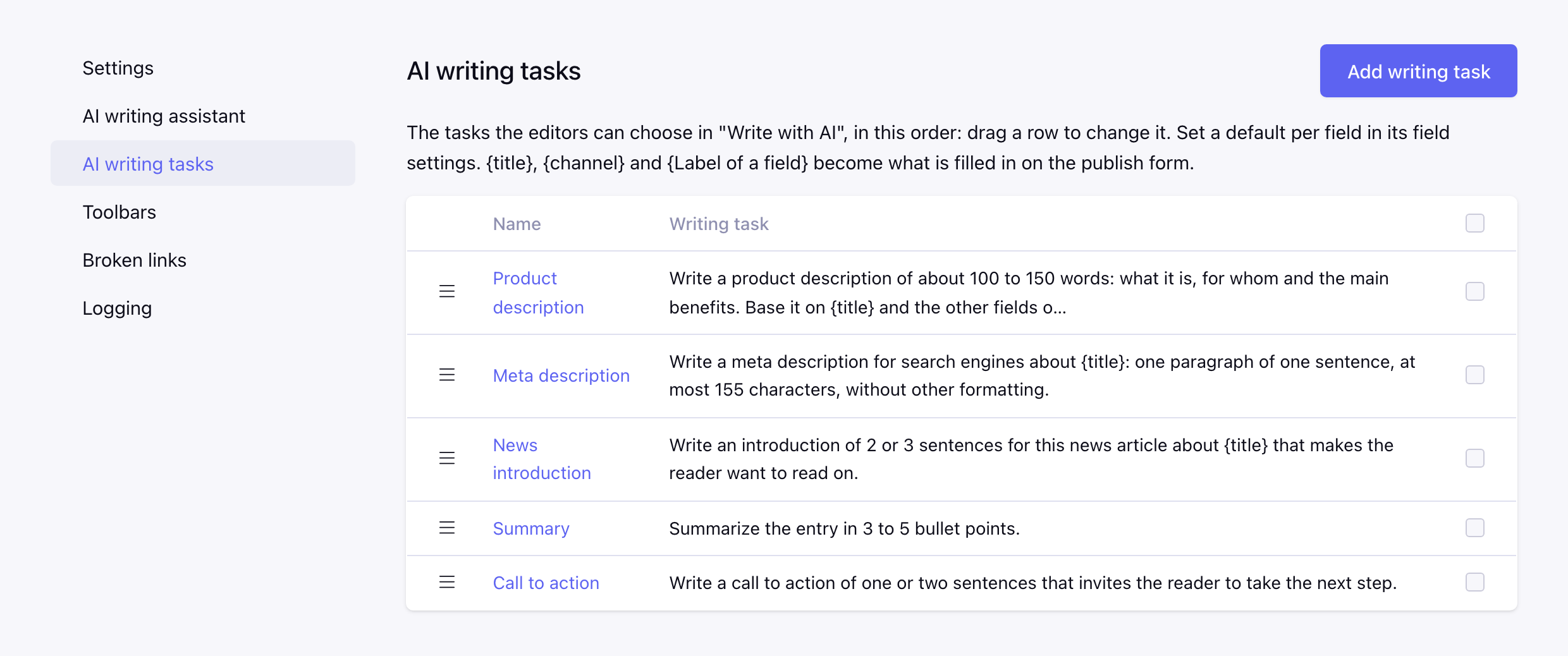
Add-ons → Wyvern → AI writing tasks is the library of writing tasks the editors choose from in Write with AI…, in the order of the list: drag a row to move it. Click a name to edit it; select tasks to delete them. A task has a name and the task:
Write a product description of about 100 words based on {title}, {Brand} and {Price}. End with a call to action.{title}, {channel} and {Label of a field} (the label as shown on the publish form, not case sensitive) become what is filled in; other {...}, such as {page_url:12}, stay. The rest of the entry is sent along anyway, so variables are only needed to point the AI at specific fields.
A new install starts with Product description, News introduction, Meta description, Summary and Call to action; change or delete them as you like. Writing tasks are per site.
Writing task per field
In the field settings of a field:
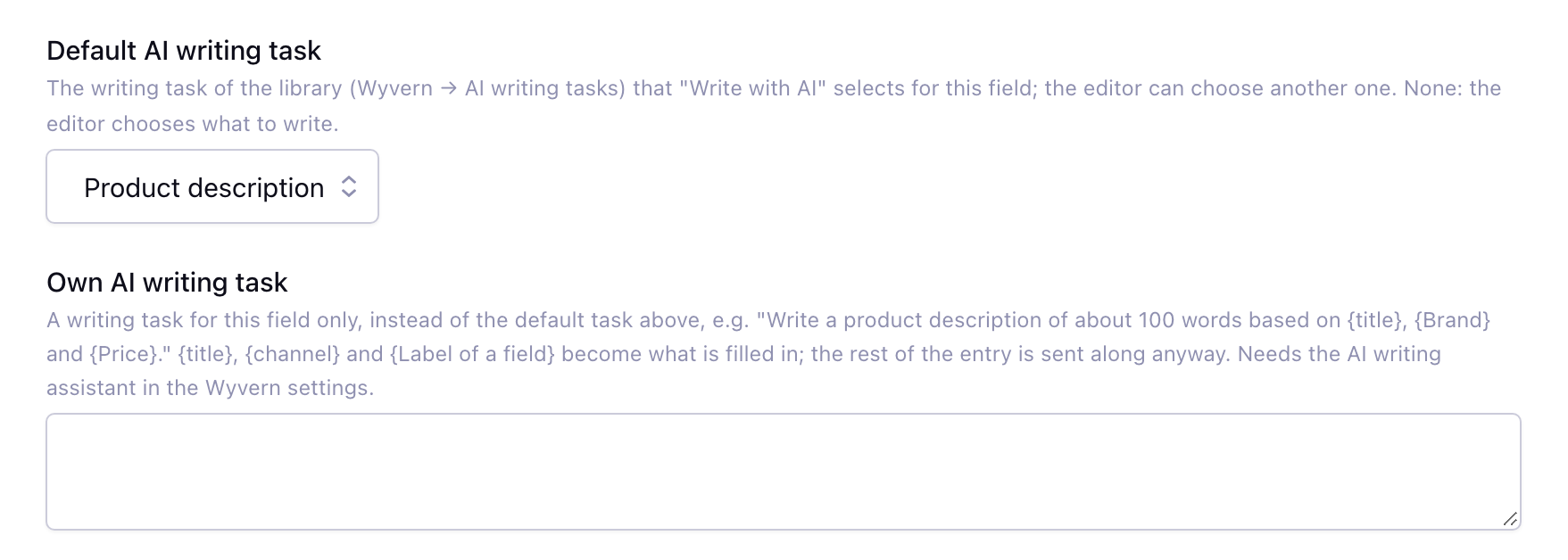
- Default AI writing task: the task of the library that Write with AI… selects for this field. The editor can still choose another one, handy in a Fluid field where the same Wyvern field is used for an introduction, a text and a conclusion;
- Own AI writing task: a task for this field only, shown at the top of the list with the name of the field, e.g. Body (task of this field), and selected first.
Actions on the selection
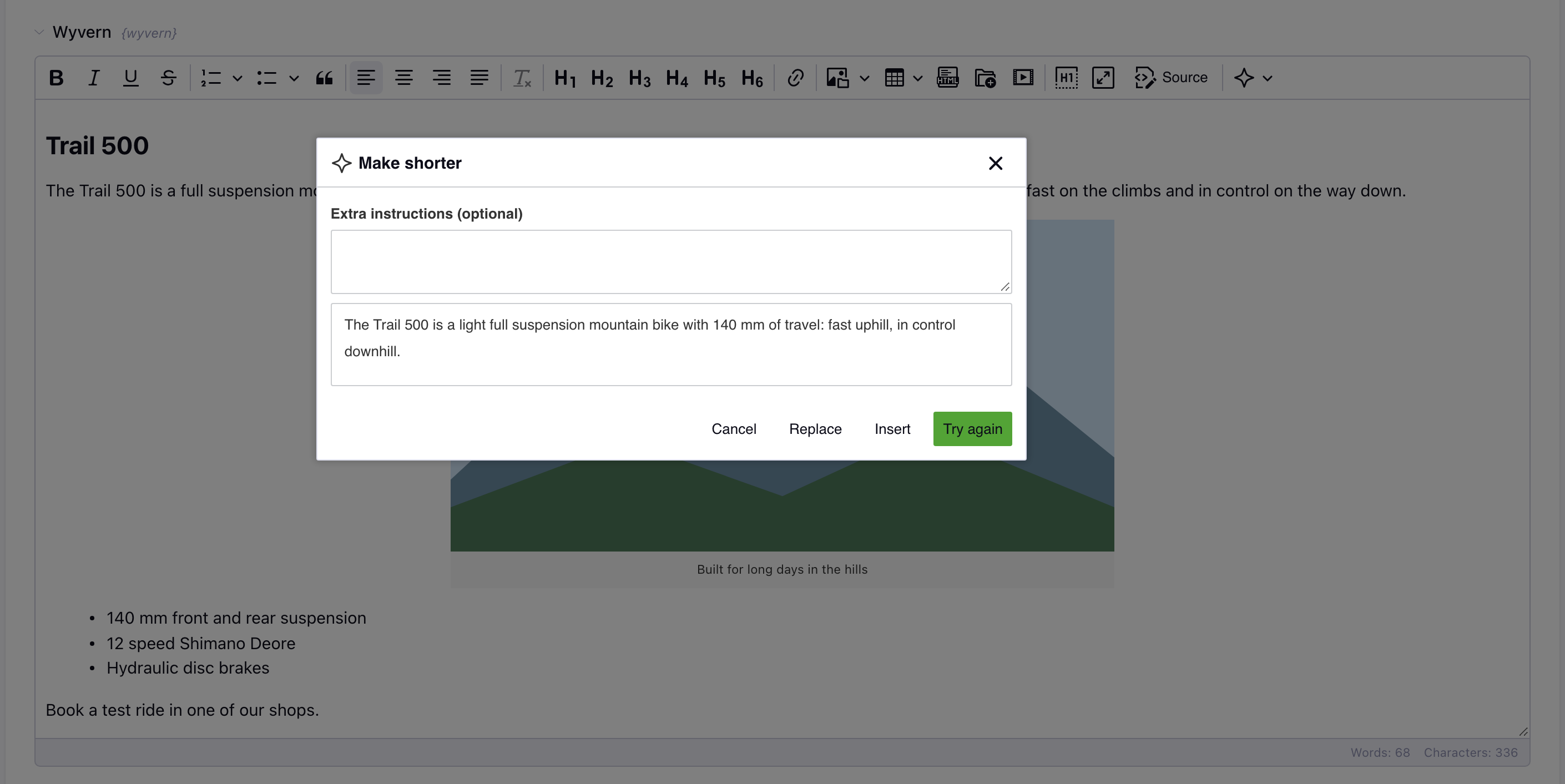
The other items work on the selected text and start right away (Translate… after you choose the language); add Extra instructions and click Try again to steer the answer: Rewrite, Make shorter, Make longer, Fix spelling and grammar, More formal, More informal, Translate… (choose the language), Summarize. Continue writing writes on from the cursor. Insert puts the answer after the selection, Replace replaces the selection.
The AI writes in the language of the text and the entry, as simple HTML (paragraphs, headings, lists, bold, italic, links). It is told never to make up facts such as prices, dates or specifications, and to keep tags like {page_url:12} as they are, but always read what it wrote.
Costs and insight
Every request is written to the Wyvern log (Logging in the sidebar), also when Logging is set to only errors: the member, the task, the model, the input/output tokens and an estimated cost, e.g.
AI "write" by Jan (#5), claude-opus-5-5: 412 input / 236 output tokens (cache read 0, cache write 0), ≈ $0.0064Use the filters and the CSV export of the log page for an overview. Errors (an invalid key, no credit left, the provider's rate limit, the AI being busy) are logged as errors. Set Logging to nothing to log nothing at all.
For Claude the estimate uses Anthropic's list prices, for OpenAI and Gemini the prices you enter (cached input at a tenth). The invoice of the provider is leading.
Privacy
With the assistant on, the following is sent to the provider when an editor uses it: the selected text or the text of the field, the title and the other fields of the entry (also the other blocks of a Fluid field or Grid row), the label, instructions and channel of the field, About the website, the house style and, when allowed, the images. Nothing is sent for visitors of the website. OpenAI and Gemini are asked not to store the request (store: false). With the free tier of the Gemini API Google may use the texts to improve its products, use a project with billing. See the privacy policy of Anthropic, OpenAI or Google, and mention the use in your own privacy policy where needed.