
Appearance
PDF layouts
Available from v4.0.0
The Store makes three PDF documents of an order: the invoice, the order confirmation and the packing slip. You download them from the order page in the CP, with the download tag, and Store Email can attach them to an email.
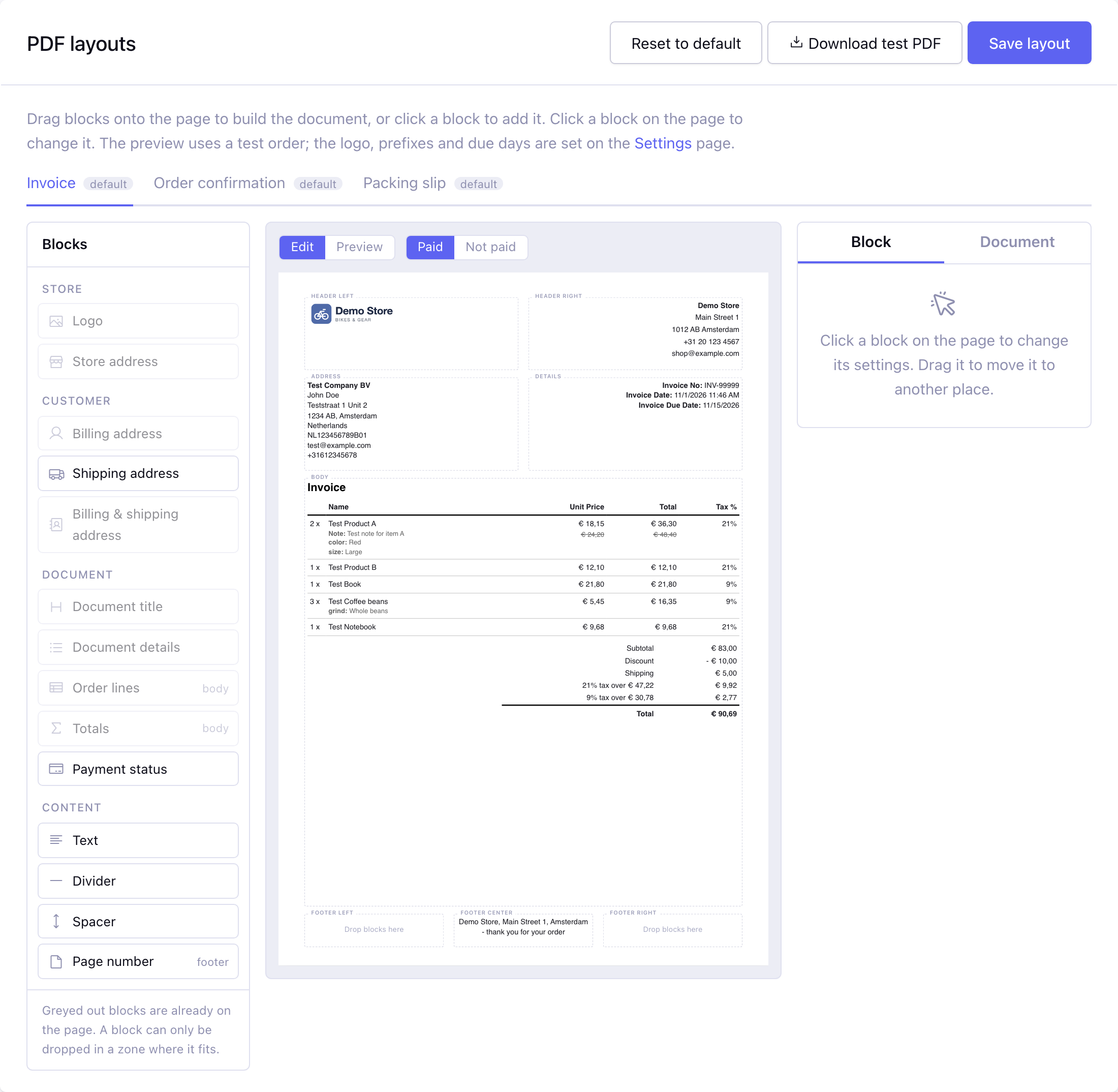
On the PDF layouts page in the CP you build each document yourself from blocks. Every document has its own layout.
The page has its own permission: choose on the Permissions page which roles can open it. Without it, only a Super Admin can change the layouts.
Default layout
A document without a saved layout uses the default layout, which looks like the PDFs from before 4.0.0. The tabs show default for those documents. Reset to default removes the saved layout of a document.
The editor
The page has three columns:
- Blocks: the blocks you can place. Drag a block to the page, or click it to add it to the body (or to the first zone it fits in, e.g. the footer for Page number). A greyed out block is already on the page, most blocks can be used once.
- The page: an A4 (or US Letter) page with fixed zones. Drag a block to move it within a zone or to another zone; while dragging, the zones where the block fits light up. Click a block to change it, the cross removes it.
- Settings: the Block tab shows the settings of the selected block, the Document tab the settings of the whole document.
Above the page you switch between Edit and Preview, and between a paid and a not paid test order. The preview is rendered by the same code as the PDF, with a test order. Download test PDF makes the real PDF of the layout on the page, also when it is not saved yet. Nothing changes for your customers until you click Save layout.
Zones
| Zone | Where |
|---|---|
| Header left, Header right | the top of the first page |
| Address, Details | the row below the header, e.g. the billing address and the document details |
| Body | the full width of the page, e.g. the title, the order lines and the totals |
| Footer left, Footer center, Footer right | the bottom of every page (or of the last page, see Document settings) |
Blocks
| Block | Zones | Settings |
|---|---|---|
| Logo | all | width, alignment. The image is the Logo setting on the Settings page |
| Store address | all | alignment. The text is the Store Address setting |
| Billing address | header, address, body | alignment, heading, company, VAT number, email, phone |
| Shipping address | header, address, body | alignment, heading, only when it differs from the billing address |
| Billing & shipping address | header, address, body | both addresses next to each other: headings, company, VAT number, email and phone of the billing address, and the shipping address only when it differs. Instead of the separate address blocks: when one is on the page, the other is greyed out |
| Document title | header, address, body | own title (empty: Invoice, Order, Packing slip), size, alignment |
| Document details | header, address, body | document number, date, due date (invoice), customer number (members), payment method (packing slip: shipping method) |
| Order lines | body | prices incl. or excl. tax, "(incl. tax)" / "(excl. tax)" in the column headings, columns quantity, SKU, unit price, line total, tax % and tax amount, the old price of items on sale, custom fields and note. The packing slip has a checkbox column and no prices |
| Totals | body | prices incl. or excl. tax, reverse charge note. The tax is shown per rate. Not on the packing slip |
| Payment status | all | a text when paid (with a PAID stamp) and a text when not paid. Not on the packing slip |
| Text | all | free text with HTML and order tags, text size, alignment, bold, italic, note style. The B and I buttons make the selected text bold or italic. Can be used more than once |
| Divider, Spacer | all | the spacer has a height |
| Page number | footer | alignment, shows e.g. Page 1 / 2 |
Prices incl. or excl. tax
The Order lines and Totals blocks each have a Prices setting, so you choose per block whether the prices include tax. The tax lines of the totals show which one it is:
Excl. tax                              Incl. tax
Subtotal                  € 40,00      Subtotal                  € 48,40
Discount                 - € 4,00      Discount                 - € 4,84
Shipping                   € 5,00      Shipping                   € 6,05
21% tax over € 41,00       € 8,61      Total                     € 49,61
Total                     € 49,61      Including 21% tax          € 8,61
There is a tax line for every rate, with the amount the tax is calculated over (excl. tax), as an invoice in the EU needs. The discount is divided over the lines and the shipping has its own rate, like the order itself is calculated; the tax lines always add up to the tax of the order. The Order lines block can show "(incl. tax)" or "(excl. tax)" in its column headings.
Order tags in a text
The Text and Payment status blocks parse the order tags of the order, without the order: prefix, and conditionals, e.g.:
Please pay {total_plus_tax:formatted} before {due_date}, stating {invoice_no}.
{if is_paid}Thank you for your payment.{/if}
Besides the single values of the order tag (e.g. {customer_first_name}, {total_plus_tax:formatted}, {gateway_label}), these tags are available:
| Tag | Example |
|---|---|
{invoice_no} | INV-1042 (invoice prefix + order id) |
{order_no} | ORD-1042 (order prefix + order id) |
{document_no} | the invoice number on the invoice, the order number on the other documents |
{order_date}, {invoice_date} | the date of the order |
{due_date} | the order date plus the Invoice Due Days setting |
{document_type} | invoice, confirmation or shipping |
Tag pairs such as {items} are not available, use the Order lines block for the items.
Document settings
- Accent colour: the colour of the title, the lines of the tables and the total.
- Font: Helvetica, DejaVu Sans or Times, the fonts of the PDF library. Use DejaVu Sans for characters outside Western Europe (e.g. Polish, Greek or Cyrillic).
- Font size: 8 to 16 px.
- Paper size: A4 or US Letter.
- Show the footer on every page: on by default. When it is off, the footer follows the content on the last page.
Upgrading from 3.x
See also Upgrading to 4.0. The Invoice footer, Order footer and Packing slip footer settings are no longer on the Settings page. Until you save a layout, the default layout shows the old footer in the Footer center zone; when you open the PDF layouts page it is a Text block there, which you can edit or move. A new line in a text is a line break in the PDF (unless the text has its own block HTML such as <p> or <br>), so an old footer with new lines but no HTML now shows those line breaks. The logo, the prefixes and the due days stay on the Settings page.
The text blocks know the same tags as the old footers, plus the formatted values of the order tag. One tag changed: {shipping_method} is the name of the carrier now (like {order:shipping_method}), before it was the add-on that handled the shipping. The footer has about 80 px at the bottom of the page; a long footer can overlap the content, keep it to a few lines.
In the editor preview, the HTML of a text block is cleaned (e.g. style attributes are removed), so it can look a bit different from the PDF. Use Download test PDF to see the real result.
Test checklist
- Open each tab (invoice, order confirmation, packing slip) and check the preview with a paid and a not paid test order.
- Download the test PDF of each document and compare it with the preview.
- Save a layout, then download the PDF of a real order from the order page.
- Check an order with many items: the table header and the footer repeat on every page and the page number shows the right total.